
There is a popular saying that a picture is worth a thousand words. Images are a great way of catching our attention instantly. But sometimes its necessary to tag or link specific parts of images to provide information.
Popular social media giants like Facebook and Google Plus use image tagging to identify the people and places in images.
View the Demo and download the Source Files.
Your Designer Toolbox
Unlimited Downloads: 500,000+ Web Templates, Icon Sets, Themes & Design Assets

Creating the Initial Layout
In this step we are going to setup the initial layout with the image to be tagged. We need to use the jQuery UI library for dragging and dropping and resizing. Let’s take a look at our initial code.
<html>
    <head>
        <title>Image Tagging with jQuery and PHP</title>
        <link href="jquery-ui.css" rel="stylesheet" type="text/css"/>
        <script type="text/javascript" src="jquery.min.js"></script>
        <script type="text/javascript" src="jquery-ui.min.js"></script>

    </head>
    <body>

<div id='main_panel'>


<div style='margin: auto; text-align: center; width: 600px;'>

<div id='image_panel' >
                    <img src='tagging.jpg' id='imageMap' />

<div id='mapper' ><img src='save.png' onclick='openDialog()' /></div>


<div id="planetmap">

                    </div>


<div id='form_panel'>

<div class='row'>

<div class='label'>Title</div>
<div class='field'><input type='text' id='title' /></div>

                        </div>


<div class='row'>

<div class='label'></div>


<div class='field'>
                                <input type='button' value='Add Tag' onclick='addTag()' />

                            </div>

                        </div>


                    </div>

                </div>


            </div>


<div style="background: none repeat scroll 0 0 #C7C7C8; border: 1px solid #AEAEAE; clear: both; margin: 20px auto; padding: 20px 0; text-align: center; width: 600px;">
                <input type="button" value="Show Tags" onclick="showTags()" />
                <input type="button" value="Hide Tags" onclick="hideTags()" />
            </div>

        </div>


</html>
Now lets get an idea about how our layout is structured and important components for this tutorial.
- Initially we include the CSS and JavaScript files necessary for the demo. I have used the jQuery UI library.
- Then we have the #image_panel which has all the components related to tagging.
<div id='image_panel' > <img src='tagging.jpg' id='imageMap' /> <div id='mapper' ><img src='save.png' onclick='openDialog()' /></div> <div id="planetmap"> </div> <div id='form_panel'> <div class='row'> <div class='label'>Title</div> <div class='field'><input type='text' id='title' /></div> </div> <div class='row'> <div class='label'></div> <div class='field'> <input type='button' value='Add Tag' onclick='addTag()' /> </div> </div> </div> </div> - First we have the image to be tagged with the ID imageMap
- Then we have an element called #mapper which will be hidden initially. It’s used to define the tagging area.
- #image_panel is positioned relative to the main_panel and #mapper is absolutely positioned. Also, the mapper should have a higher z-index value since it needs to be displayed on top of the image.
- Then we have a component called planetmap. It is used to keep the tagged sections. When a tag is created on the main image a small div will be created and appended to this planetmap section.
- Next you can see the #form_panel. It used to create title of tags. When a tag is created it will popup and request for tag name. Once created it will hide.
Now we have a basic idea about our layout. Styles used in the demo are not included in the above code. So make sure to use the project files while you read the tutorial to get a better understanding.
Generating Tag Window
We have to load the tag window when the user clicks somewhere on the image. If you haven’t checked it already, load the demo and click somewhere. Lets see how we can create the tag window using the following code. Look at the $(“#imageMap”).click in the project files and I’ll be explaining it step by step.
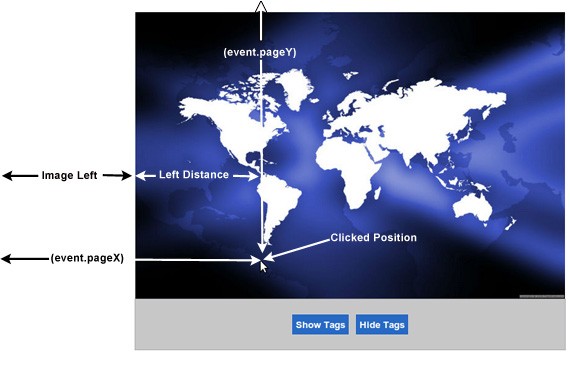
var image_left = $(this).offset().left;
var click_left = e.pageX;
var left_distance = click_left - image_left;

var image_top = $(this).offset().top;
var click_top = e.pageY;
var top_distance = click_top - image_top;
- Offset gets the coordinates of the image relative to the document. This is called inside the mouseclick event. So event.pageX will give you the absolute x coordinate of image.
- Then we get the actual distance to clicked position from the beginning of the image using click_left – image_left.
- We apply the same method to retrieve the top distance of clicked position.
var mapper_width = $('#mapper').width();
var imagemap_width = $('#imageMap').width();

var mapper_height = $('#mapper').height();
var imagemap_height = $('#imageMap').height();
Then we calculate the width and heights of mapper (window for tagging) and the actual image. Now we have all the required parameters to start loading the tag window. We can use the top_distance and left_distance to load the tag window. The problem is it should not go outside the image container, we have to do the following validations while loading tag window.
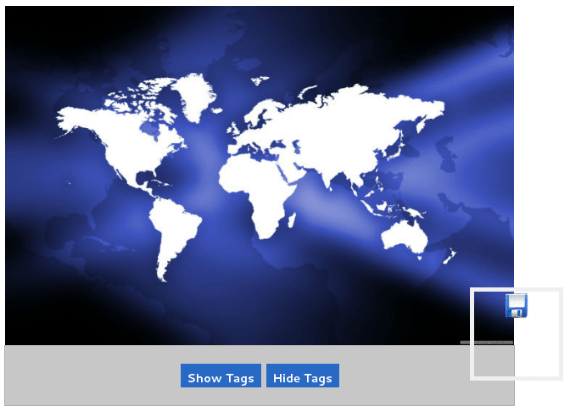
                    if((top_distance + mapper_height > imagemap_height) amp;amp; (left_distance + mapper_width > imagemap_width)){
                        $('#mapper').css("left", (click_left - mapper_width - image_left  ))
                        .css("top",(click_top - mapper_height - image_top  ))
                        .css("width","100px")
                        .css("height","100px")
                        .show();
                    }
- In the above image, the tagging window exceeds both top and left positions of the image. So we prevent that using the validation inside if statement.
- Then we assign the recalculated left and top positions and show the tagging window.
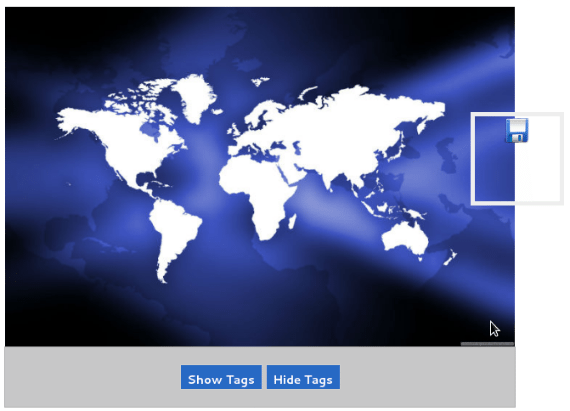
                    else if(left_distance + mapper_width > imagemap_width){

                        $('#mapper').css("left", (click_left - mapper_width - image_left  ))
                        .css("top",top_distance)
                        .css("width","100px")
                        .css("height","100px")
                        .show();

                    }
- The tagging window above exceeds left positions of the image. So we prevent that using the validation inside if statement.
- Then we assign the recalculated left positions and show the tagging window.
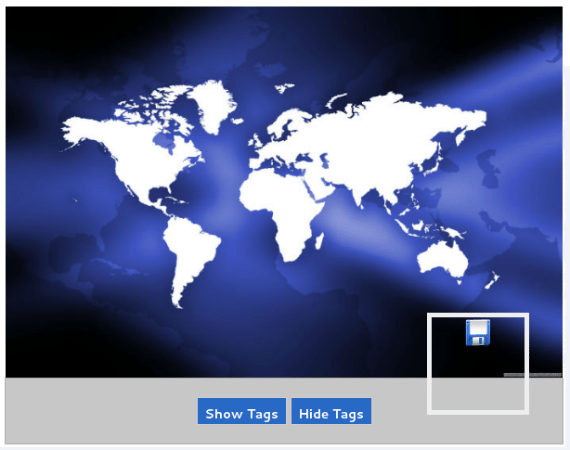
                    else if(top_distance + mapper_height > imagemap_height){
                        $('#mapper').css("left", left_distance)
                        .css("top",(click_top - mapper_height - image_top  ))
                        .css("width","100px")
                        .css("height","100px")
                        .show();
                    }
- In the image above, the tagging window exceeds the top positions of the image. So we prevent that using the validation inside if statement.
- Then we assign the recalculated top positions and show the tagging window.
                    else{

                        $('#mapper').css("left",left_distance)
                        .css("top",top_distance)
                        .css("width","100px")
                        .css("height","100px")
                        .show();
                    }
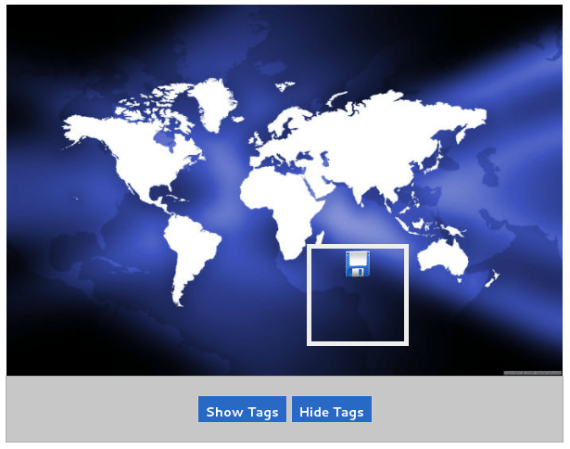
- In the above image, the window is positioned correctly without any issue. So we show the window at its current positions.
Finally we want our tagging window to be moved across the image and resize. Following code will enable dragging and resizing on tagging window.
$("#mapper").resizable({ containment: "parent" });
$("#mapper").draggable({ containment: "parent" });
Saving Tags on Image
You can see a save icon inside the tagging window opened in the previous section. Move and resize the tagging window and position it where you want to create the tag. Then click the save button which will call the openDialog function as shown below.
var openDialog = function(){
        $("#form_panel").fadeIn("slow");
};
Form used to save the tag details will be displayed as shown below.
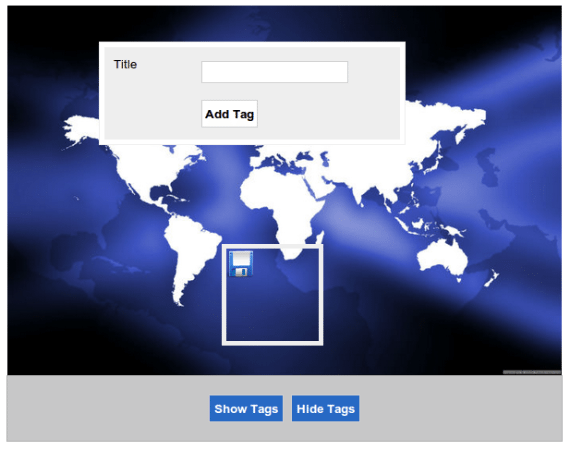
You can type a title for the tag and click the add button. The tag will be saved and hidden immediately. The section below shows the code for add tag functionality.
          var addTag = function(){
                var position = $('#mapper').position();

                var pos_x = position.left;
                var pos_y = position.top;
                var pos_width = $('#mapper').width();
                var pos_height = $('#mapper').height();

                $('#planetmap').append('
<div class="tagged" style="width:'+pos_width+';height:'+ pos_height+';left:'+pos_x+';top:'+pos_y+';" >
<div class="tagged_box" style="width:'+pos_width+';height:'+ pos_height+';display:none;" ></div>
<div class="tagged_title" style="top:'+(pos_height+5)+';display:none;" >'+
                    $("#title").val()+'</div>
</div>

');

                $("#mapper").hide();
                $("#title").val('');
                $("#form_panel").hide();

            };
- First we get the left and top positions of the tagged window and width and height of mapper.
- All the tags will be stored inside the #planetmap div. So we append the newly created tag to the #planetmap div with the title.
- Then we hide the tagging window and reset the form details.
Create as many tags as you want using the same procedure. Now we have to show the hidden tags when the mouse is moved over the tag area. Consider the following code.
            $(".tagged").live("mouseover",function(){
                if($(this).find(".openDialog").length == 0){
                    $(this).find(".tagged_box").css("display","block");
                    $(this).css("border","5px solid #EEE");

                    $(this).find(".tagged_title").css("display","block");
                }

            });

            $(".tagged").live("mouseout",function(){
                if($(this).find(".openDialog").length == 0){
                    $(this).find(".tagged_box").css("display","none");
                    $(this).css("border","none");
                    $(this).find(".tagged_title").css("display","none");
                }

            });
- Every tag we created has a class called tagged. So we search for added tags inside the image.
- On mouseover we check if the class called openDialog exists in the tag area. This class is available in the edit mode and will be explained later.
- If it’s not in edit mode, we show the tag title and tag box using the CSS display:block attribute.
- We also added a border to the tag to preview it properly.
- On mouseout we hide all the tags.
- Since tags are created dynamically, we have to add jQuery events by using the live event.
Now we have completed the tag creation process. Sometimes we may want to edit current tags by repositioning them. Let’s move onto editing tags.
Edit Tag Positions
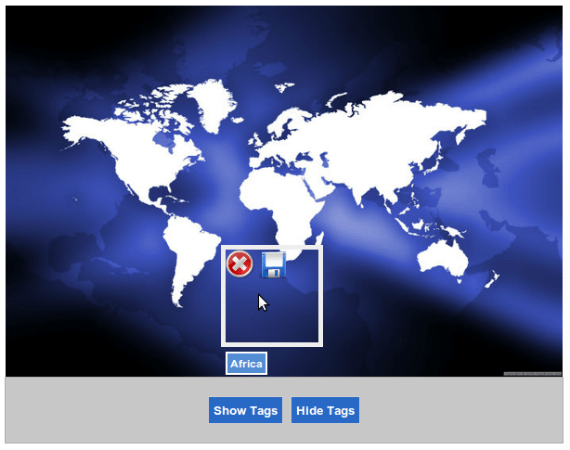
Once you mouseover a tag, it will be displayed. Then click on the tag and you will see a tag window open with save and delete buttons. Lets look at the code first.
$(".tagged").live("click",function(){
                $(this).find(".tagged_box").html("<img src='del.png' class='openDialog' value='Delete' onclick='deleteTag(this)' />\n\
        <img src='save.png' onclick='editTag(this);' value='Save' />");

                var img_scope_top = $("#imageMap").offset().top + $("#imageMap").height() - $(this).find(".tagged_box").height();
                var img_scope_left = $("#imageMap").offset().left + $("#imageMap").width() - $(this).find(".tagged_box").width();

                $(this).draggable({ containment:[$("#imageMap").offset().left,$("#imageMap").offset().top,img_scope_left,img_scope_top]  });

            });

            var editTag = function(obj){

                $(obj).parent().parent().draggable( 'disable' );
                $(obj).parent().parent().removeAttr( 'class' );
                $(obj).parent().parent().addClass( 'tagged' );
                $(obj).parent().parent().css("border","none");
                $(obj).parent().css("display","none");
                $(obj).parent().parent().find(".tagged_title").css("display","none");
                $(obj).parent().html('');

            }

            var deleteTag = function(obj){
                $(obj).parent().parent().remove();
            };
- Save and delete buttons will be shown when you click on a current tag in the image. Now the tag is in an editable mode.
- You can move and reposition the current tag. In the code img_scope_top and img_scope_left variables are used to identify the scope where your tag can be moved.
- Then we make the tag movable within the calculated scope.
- Once finished, try positioning the cursor on the save button again to save the tag in the new position. Function editTag will be called in this scenario.
- First we disable the dragging once the edit button is clicked.
- Then we hide the tag window after saving as we did previously.
- Also, you can click delete button to remove the tag from the current image.
Now we have completed the image tagging process. No tags are displayed in default mode. So you can use the following code if you want to show and hide all the tags specified in the image.
Show All Tags
           var showTags = function(){
                $(".tagged_box").css("display","block");
                $(".tagged").css("border","5px solid #EEE");
                $(".tagged_title").css("display","block");
            };
Hide All Tags
            var hideTags = function(){
                $(".tagged_box").css("display","none");
                $(".tagged").css("border","none");
                $(".tagged_title").css("display","none");
            };
Finished!
In this tutorial I have explained the process and necessary code for creating a simple image tagging system. Now it’s your responsibility to add new features and use it in your projects. Hope you enjoyed it and feel free to add your suggestions and questions in the comments section.
This post may contain affiliate links. See our disclosure about affiliate links here.