
The miraculous and ubiquitous Google is something that needs no introduction. From children to adults everyone is aware of its worth. There are several myths about Google which keep its users away from its right usage.
People believe that there is a lack of credible information on Google and the unwanted results from millions of resources are inevitable.
Your Designer Toolbox
Unlimited Downloads: 500,000+ Web Templates, Icon Sets, Themes & Design Assets

Table of Contents:
- Use Google Like a Pro!
- 5 Advanced Google Tricks to Help You Become a Better Web Designer
- How to Use Gmail Like a Pro – Smart Tips and Tricks
Use Google Like a Pro!
You can find trustworthy information and can filter it to avoid unwanted results by utilizing right tricks and strategies. Google search is very simple to use and by applying different techniques for search you can get better outcome of your query. Since it uses cloud computing, Google retrieves information from all over the world which can be made specific by basic search methods. Here are some tips and tricks for you which will surely help you to get great results from Google search.
a) Google Basics
In order to make your search powerful there are some basic tips that should be adopted to refine your search. Before going into detail I would like you to know that although Google shows all possible results but there are some keywords which are ignored by this search engine. These are those words which appears too frequently to be of any use like I, where, a, an, the, this, that, about etc. Some tips that I found constructive are as follows.
Tips
1. Use quotation marks and plus sign
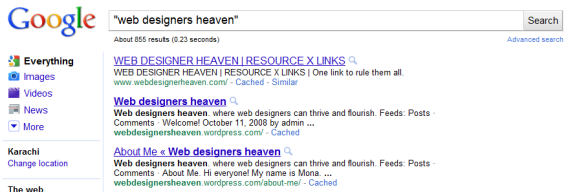
If searching for a specific quote then use quotation marks (“”). The Google will find out the results containing accurate set of words without any change in order. You can also use a plus sign (+) immediately before the word without any space, it will provide you the same result as from quotation marks.
2. Use domain or website name
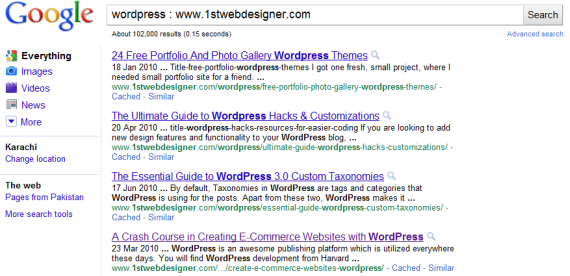
If Searching information from a specific website then use the keyword with the name of your desired website and separate them with double colon [abc: xyz.com]. You can specify domain as well like [abc: .gov] or [abc: .uk]. It will show result only from government site or in case of other domain only from sites with your required domain.
3. Use minus sign
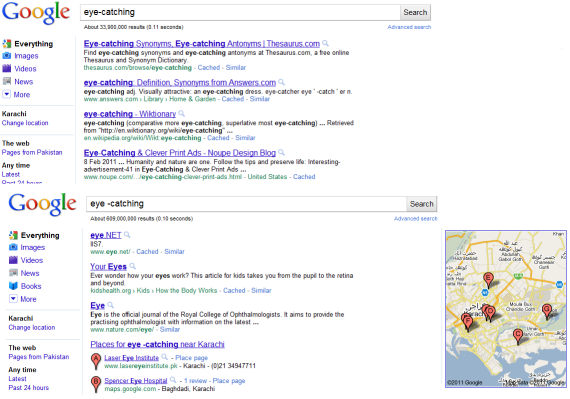
If you want to exclude a specific word from your search results then you can use a minus sign. This will omit the word following minus sign from search results except the words where minus sign is used as a hyphen like [eye-catching]. This example will show websites containing information about eye-catching.
4. Use Asterix sign
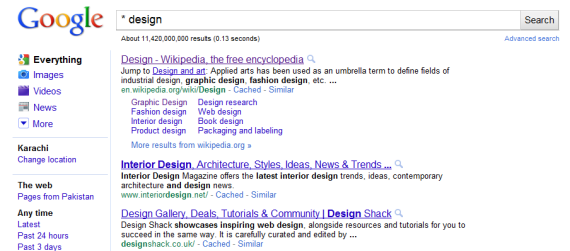
If searching for a unclear information about a specific thing then use (*). The Google will find out all possible combination of information to the related post like [* flower].
5. Use OR operator
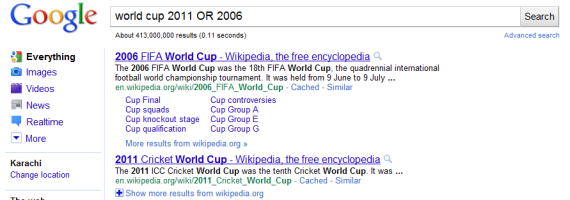
You can give Google a choice between two keywords by using OR operator. The Google will submit results about either of the two keywords like [world cup 2011 OR 2006]. The resulting sites will be about world cup 2006 or world 2011 whereas if you expel OR operator than the consequence will include those sites which contain the information about both.
Points to remember
- Every word you put in the search engine will be used except the words that are most used on World Wide Web.
- Punctuation marks are not included except those which have meanings like punctuation marks used in C++, C#, $45000, and so on.
- Search engine will show same results for the same word whether it is in upper case or in lower case for the fact that search engine is case insensitive.
- By default Google uses AND operator.
Strategies
Along with tips and tactics, strategies are also required to get a fruitful result. Following are some strategies for you to optimize your search.
- Keep your keywords precise.
- Be cleared about what you are searching for.
- If you are not clear about your keyword then use words that are most probable to appear on your desired web page. Do not ask questions as you are asking with a human being like [ in which country people worship cow?] instead use [ people worship cow in]
- Use appropriate words like if you are searching for ring tones don’t use word sound.
- You can also use Google shortcuts which will save your time.
b) Google Advanced Search
Besides searching a keyword using basic guidelines there are some special queries that can be used to search in an advanced form. These queries will restrict your search and prohibit you from wastage of time. These queries are very much similar to the query used to make your search specific to a country or domain. There are some smarter and advanced features of Google which will enthrall you.
1. Use destination names for flight information
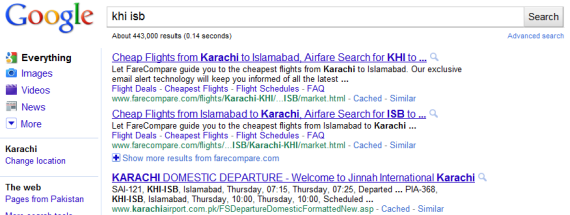
If you want to book a flight you can write the names of the destinations only and Google will retrieve the flight information like [khi isb].
2. Use range instead of list of numbers
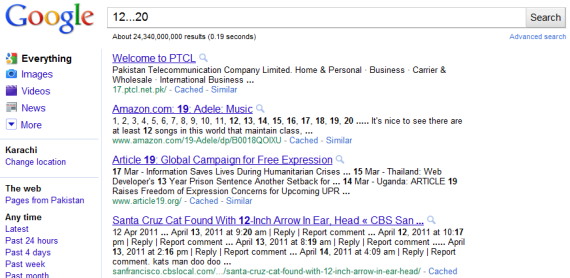
If you want a result within a range of numbers than you can write it like [12…20] instead of specifying all numbers of the range.
3. Use “filetype”
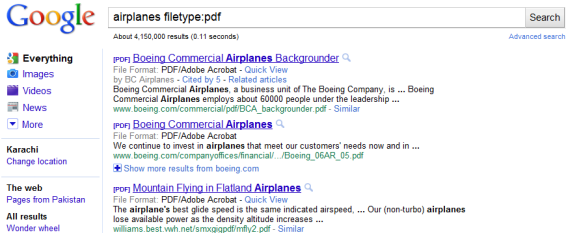
If you want to have a result only in a specific file type then write your keyword along with filetype:pdf like [airplanes filetype:pdf].
4. Use “link”

You can even found links of a webpage by using query like [link: www.1stwebdesigner.com].
5. Use “define”
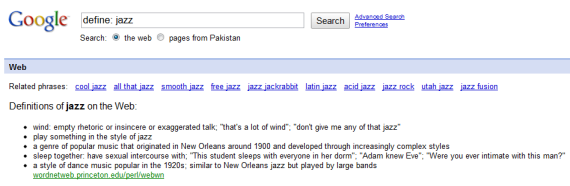
If you are searching for a definition then you can refine your search by adding the word “define” with a colon like this [define: jazz]. This will give you result which holds definition of the word only.
6. Use “movie”
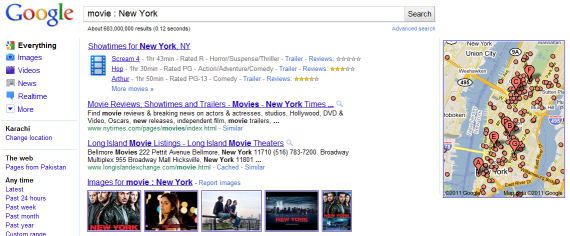
You can find sources related to movies only by using query like [movie : New York]. This will give you result not only about movie but also its showtimes, reviews etc.
7. Use “allinanchor” and “allintitle”
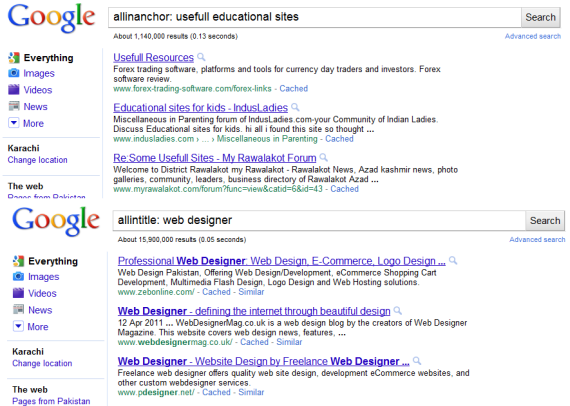
If you are searching for a web page of that object which is popular for something then use [allinanchor: useful educational sites] and [allintitle : web designer ] to view a page with a title containing “web” and “designer”.
Points to remember
- By default Google operates in “moderate filtering” mode but it can be reset according to your requirement.
- You can change the preferences to “strict filtering” to prohibit Google from showing objectionable material.
Advance strategies
- Use cached version of the page to safe your time which can be wasted in the navigation of the page due to slow speed of browser.
- Bookmark pages that you use frequently so that you don’t need to do the hard work in finding the page again in future.
c) Google Search shortcuts
1. Dictionary – Now only as Chrome plugin
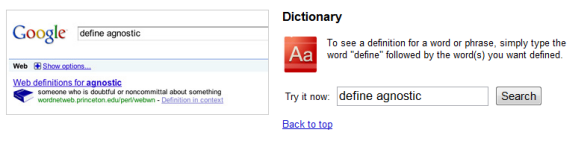
This shortcut will be helpful if you want to know the meaning of any word. Just type in the word followed by the word define and get results. By using this shortcut you do not need to search the whole dictionary.
2. Calculator
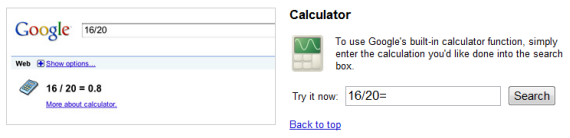
Google has blessed us with a Google calculator. You do not need to waste your time in searching for calculator. It works like any simple calculator, try it and make your calculations easy.
3. Public data
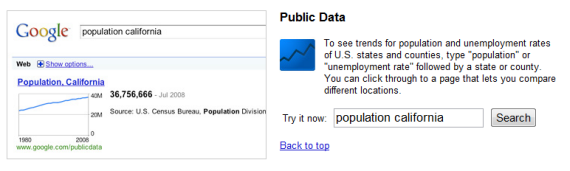
Now you can search public data to know population rate or unemployment rate by using this shortcut. Just type population or unemployment rate with the name of city and get the answers.
4. Time
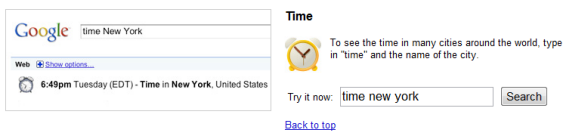
If you are searching for time to reset your clocks then Google will let you know the time of any city of the world by this tool. Find time by writing time in the search box with the name of the city.
5. Earth quakes
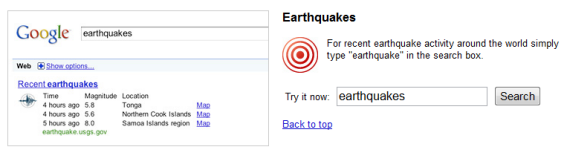
Due to high frequency of natural disasters around the world. Google has made this shortcut to provide information about earthquake and related activities from all over the world.
6. Fill in the blanks
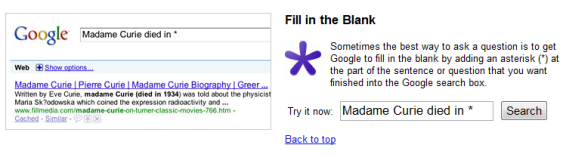
Due to shortage of time, mostly a machine is required that replies with our less efforts. This shortcut is one contribution of Google to provide accessibility without less effort. Now you need to write only the initials of the information with a asterix sign and the Google will fill the blank itself.
7. Zip code
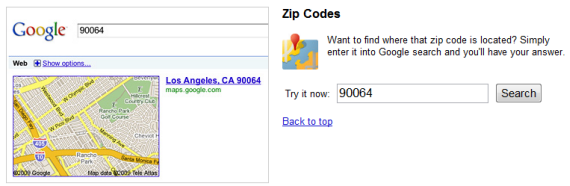
This is very helpful for those who works in postal services. This tool will tell you the location of the zip code. You just have to write the zip code in the search engine.
8. Unit conversion
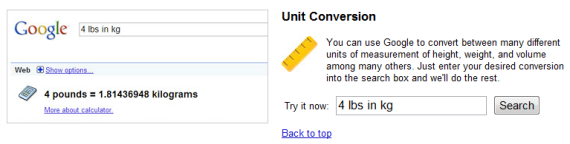
Conversion of units are also very comfy now by Google unit conversion. Type the desired unit with the amount that you want to convert and get the converted rate.
9. Currency conversion
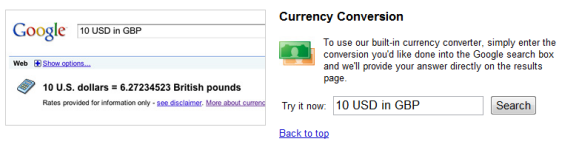
This is another tool by Google, using this you can convert any currency amount into desired currency you want.
10. Package tracking
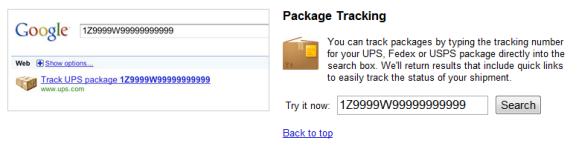
This tool will help you if you want to track your package by just typing the tracking number for Fedex or USPS.
11. Mortgage rates
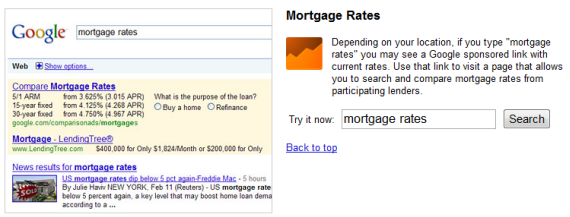
This tool will give you information of mortgage rate which will depends on your location. The resulted links will comprises of the websites that contains the information of the mortgage rate.
That’s all. If there is anything we missed, please feel free to tip us in comments :)
Now let’s take a look at how you can be a better designer with Google.
5 Advanced Google Tricks to Help You Become a Better Web Designer

You can use some simple Google tools in very creative ways, as well as use some more advanced ones to:
- find high-quality tutorials for any web design software tool, and find them easier and faster
- find decent alternatives for the current web design software you’re using
- search for what Spanish (or <insert your favorite nation here>) web designers are talking about
…and much more! You’ll learn all of this in the text below. I’ll use specific examples to illustrate my points, but that doesn’t mean you can’t use your own examples when you understand the points. So let’s get started, shall we?
1. A Small Google Suggest Trick Can Help You Find What Kind of Photoshop Brushes People Are Searching For…
Let’s suppose you’re looking for Photoshop brushes on Google. So you type ‘Photoshop brushes’ in Google and get the usual results. One of the first things you will eventually find is what type of brushes exist. The traditional way people do this is going through multiple sites, seeing what they have to offer and using a lot of trial & error.
But what if I told you there’s a better way to find what type of brushes people are actually searching for on Google? That can help you find some popular (and with the wisdom of crowds, popular can mean good) brushes you can use in your designs. How can you do this? With Google Suggested Results.
How to do it: Type ‘photoshop brushes’ into Google. Suggested results will appear (depending on whether or not you have Instant turned on, you’ll see 5 or 10 suggested results max. I’ll turn off Instant for now in order to get more suggested results). Position your mouse cursor immediately after ‘photoshop’. Now press space. The following should appear:
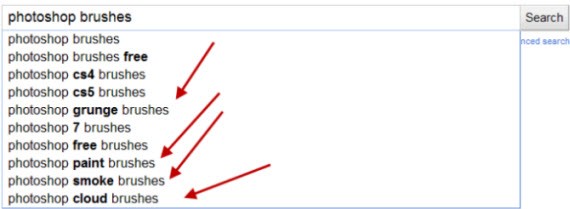
That’s cool and everything, but not enough for us. We want more relevant results, we want to see more types of Photoshop brushes!! What about I type some letter…like b:
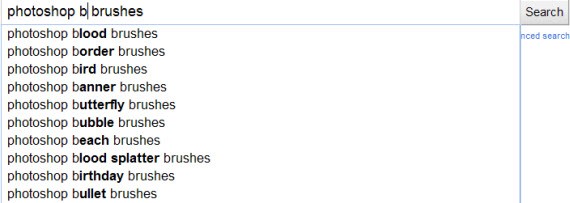
That’s cool already! You can do this with almost every letter and see what type of Photoshop brushes are people actually searching for. For z, it is “zebra” and “zipper” brushes. For h, it is “hair” and “heart”.
You can do this with almost any type of keyword that is broad enough in order to display specific results like these. Keywords like “dreamweaver templates” or “wordpress themes” or “Illustrator patterns”, for example.
2. Using a Web Design Software but Think There’s a Better One Out There? Here’s How to Find Quality Alternatives
Let’s say you’re using Dreamweaver and are looking for a more extensive list of alternatives. Sure, you can type ‘Dreamweaver alternatives’ but what about using some creative queries to get more relevant results…like THIS ONE:
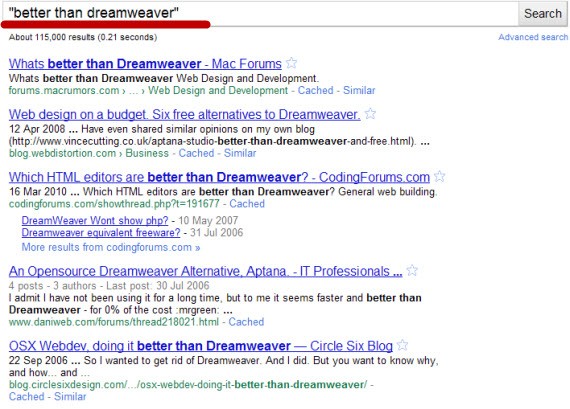
The “better than” keyword can help you find alternatives to practically any web design (or any type of) software out there. “Better than Photoshop”? “Better Than Xara”? You name it and the Google index of 1+ trillion pages has it :)
Another great way to find alternatives to software is to use the “vs.” trick. Let’s go with our Dreamweaver example and see what people use to compare this software to:
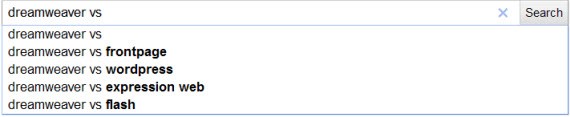
or we can go the other way around, put the “vs” behind “dreamweaver” and position the cursor behind the “vs” like this:
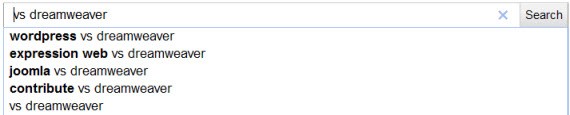
We got 2-3 new alternatives!
3. Want to Find Related Keywords to the One You Just Typed? No Worries!
If you click on “more search tools” on the left of the Google results and then on “related searches” you should be presented with some amazing options on related keywords you can use to find what you’re looking for. This is especially useful if the topic you’re searching for is new and unknown to you.
Let’s say you’re interested in learning more about AJAX. You know PHP and you know Javascript but have no idea in what way is exactly Ajax related to them. So you try and type ‘ajax’ and select ‘related searches’. Here is what you get:
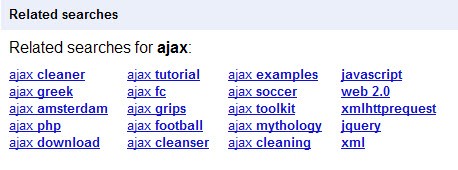
This can give you a good foundation on where to start. You can type ‘ajax php’ and ‘ajax javascript’ to see articles on how these 2 technologies directly relate, then you can look for examples and tutorials, XML and so on. Some of these things are obvious but, the truth is, our memory is often too limited to remember to do all obvious things at once. Related searches can be a good reminder to suggest to you what to search for next.
4. Looking for advanced tutorials? Search by file type

As a rule of thumb, PDF files contain tutorials that are often more extensive and offer more information than ordinary web pages. The downside? There are not that many free PDF tutorials on the web. You can try to use the “filetype:pdf” modifier in Google, however, to search for a specific file type only (in this case PDF) and see if you can get some relevant results.
I think that the sheer amount of tutorials hosted on the web nowadays, by quantity is exceeding the amount of information tutorials made in PDF files currently provide. If you want to save time, however, a good idea would be to try and to filter using PDF file type see see some interesting stuff.
*another tip:
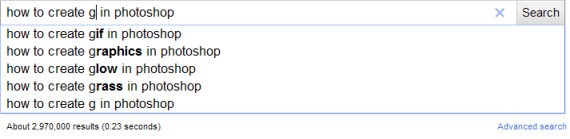
I’ve noticed that often, tutorials are in the format “how to create/make _________ in program-name”. You can use this + the first trick above to find ideas on what tutorials people are searching for. For example:
A little bit of creativity and everything’s possible :)
5. Fireworks Tutorials in Spanish?
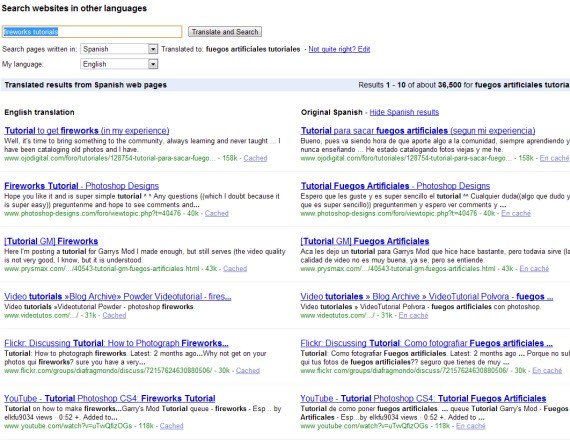
This is very fun :) You can use Google Translated Search to search sites in Spanish using English. For example:
Isn’t that neat? :)
Oh and by the way, it’s not that this is useless, you can actually find a lot of good stuff there. Why? I haven’t checked if this is exactly true, but I know from experience that you I get more quality stuff in other languages. While those people might not have many original tutorials, they take the best English tutorials and translate them into their own language. So you can potentially find a lot of high-quality stuff using Translated Search fast.
Now let’s look at some great Gmail tips.
How to Use Gmail Like a Pro – Smart Tips and Tricks
Knowing your way through Gmail is a good way to increase work productivity, that’s why I wrote this to give you an idea on how extensible and flexible Gmail is. After reading this you will have sufficient knowledge of Gmail and your e-mail management will surely sky-rocket with efficiency.
There is a stereotype between e-mail users which states that you can tell what kind a person is by just looking at his/her e-mail. Having a Yahoo! mail account suggests a person is just a regular internet user; Gmail users are for more technical people who are very internet savvy. Then there are those with custom e-mail for webmasters/website owners, these people make others’ jaw drop because it’s cool. Having said that, I’ll focus on setting up and optimizing Gmail . If you’re an Oatmeal fan, what comes to mind? This.
Problems Encountered (for people with rudimentary setup)
Well, not really a problem but the targeted ads creep me out. I was having a conversation with someone about an accident that just occurred, and the next moment I saw the ads refresh and bam, there’s an advertisement about accidents and insurance. The ads read my messages! I find this creepy, really.
For basic setup, the most common problem people who receive tons of messages encounter is that all the messages are kept in the inbox, and it’s easier to miss important messages. Another one is sending messages to multiple contacts, the time will come when people will get tired of typing seven names/addresses…solution? Create groups.
Another problem I encountered, which is a little embarrassing on my part, is sending mass e-mail without using Bcc or Cc. I sent an e-mail to seven applicant writers, exposing each person’s e-mail address, and they knew there were seven of them. Facepalm.
To address the following problems, and help you save face and time, take a little while to read through and set-up your Gmail. It pays!
Smart E-mail Setup = Better Time and Work Management
Telling your clients and other contacts that you reply as soon as you read their e-mail is a big no-no. There are two ways of how people “condition” their contacts into thinking this. First is by telling them you will, and secondly by doing it. Time is fleeting, don’t waste it on e-mail. Having a specific time of the day to check your e-mail and reply is a very good way to increase productivity and tell people when to expect your reply.
What most effective freelancers do with their e-mail is they only check it twice a day, before starting work and before day’s end. Keeping your mailbox open the whole day is not a good idea, it is a temptation. Set aside at least 15 minutes in the morning before starting work, check again during lunch time, and finally at day’s end. This is a win-win strategy, once you’ve conditioned people about what time of the day you usually check your mailbox you then get to work more without worrying about missing something.
Signature
Use the three.sentenc.es “policy” and add the following to your signature:
——————————————–
Q: Why is this email three sentences or less?
A: http://three.sentenc.es
This is to help you save time, not really mandatory, but more of a “personal policy” as they say. There is beauty in short messages, it helps you save time. The shorter, the better. Don’t make e-mail management your full-time job. It is important to include the quoted text above to your signature to let them know what’s up with your short responses.
When it comes to signatures, do: keep it short and professional, and include necessary contact information. Do not: for the love of Batman please don’t add animated GIFs (especially glittery ones), and never include quotations (unless it is highly relevant).
Then again, priorities tend to get mixed up when it comes to e-mail. Keeping all messages in your inbox is not a good thing if you receive 20 to 40 e-mails in a day.
Accounts and Contacts
Priority Inbox
A solution for an overflowing inbox, to avoid missing the most important e-mail, is the Priority Inbox which learns through your activities who among your contacts are high priority. If someone is labeled high priority, messages are filtered so that you can see them as soon as you open your Priority Inbox. It is an intelligent piece of technology made specifically for users who receive massive amounts of e-mail. This, to a degree, eliminates the human error of missing important messages.
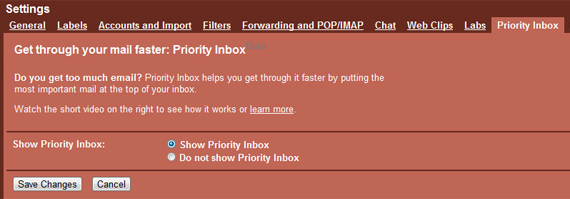
To enable Priority Inbox, go to Mail Settings, then go to Priority Inbox tab and select “Show Priority Inbox” and Save Changes. The page will reload and an information window will appear.
Connecting Multiple Accounts
For people like me who have several e-mail addresses that you can’t just leave because of the countless subscriptions, one for business and one for personal, there’s an easy fix. Connecting multiple accounts and auto-forwarding them to a “central” account does the trick.
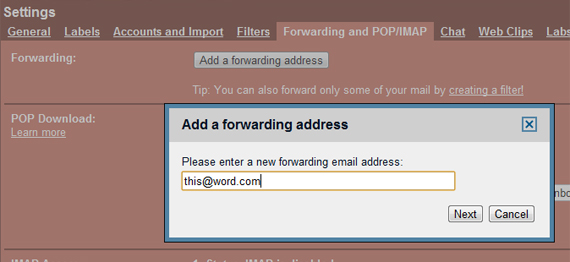
Go to Mail Settings, then under Forwarding and POP/IMAP click “Add a forwarding address” and enter the e-mail address. A confirmation code/message will be sent to that address that you need to click in order to verify this request.
I have four e-mail addresses, one I use for registering on websites that I don’t quite trust yet, one for my personal contacts and subscriptions, one for work, and the last one for payments. I only open one mailbox but I can still send using my other IDs.

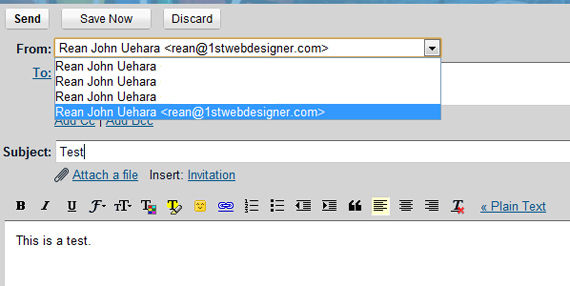
Go to Mail Settings, under Accounts and Import click “Send mail from another address” and a window will appear, enter your name and the e-mail address you want to use. Then the usual verification process will follow. After successfully doing this, compose a new message and you will have the option to select which e-mail address to use when replying, no need to open that mailbox and reply using that one. In this case, I have four addresses I can use to reply to people.
Sooner or later you will notice that there are some messages that you’d rather not get but it’s too tedious to unsubscribe to. Solution? Filters. Setting up filters also gives you a clean inbox. You can filter messages and send them directly to a folder you want to.
Adding Filters
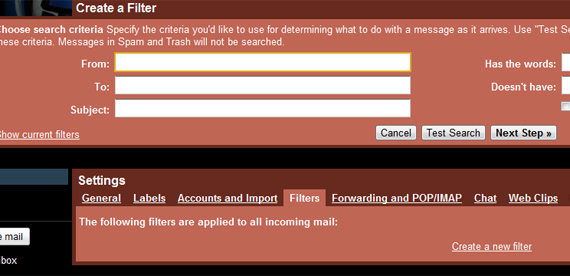
Go to Mail Settings, under Filters tab click “Create a new filter” and a form will appear.
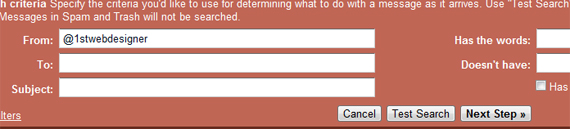
You can be as specific as you want when specifying the criteria, in this case I used a wildcard. Whenever I receive messages from any @1stwebdesigner…
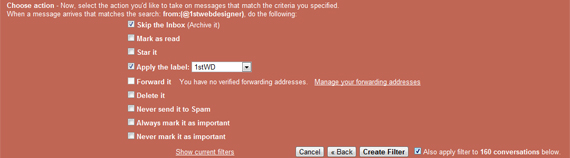
…the message instantly skips the Inbox and heads directly to the folder I created named “1stWD”. To apply this filter to past conversations, just click “Also apply…” and finally, Create Filter.
Creating Groups
To help save time especially when sending an e-mail to several recipients often.

Go to Contacts, under the left sidebar you will see “New Group…” click it and enter your desired name for that group. Next is select that Group and click Add to “<group name>”. The next time you send a mass e-mail, you just have to write down the name of the group. Neat, eh?
Tips to Make Life Easier
Desktop Notifications
This may sound hypocritical, since I said earlier to not keep your mailbox open all day, but you can also set desktop notifications (like when someone goes online on IMs) for every new e-mail, or only for important messages are received.

Go to Mail Settings, under General tab you will see “Desktop Notifications,” just select “Chat notifications on” and choose between “New mail notifications” or “Important mail notifications.” The downside here is you won’t get notified of new e-mail if Gmail is closed. Gmail Notifier keeps you updated without logging in.
Shortcuts
Another graceful addition to your Gmail knowledge is knowing the shortcuts. You aren’t a pro if you don’t know them!
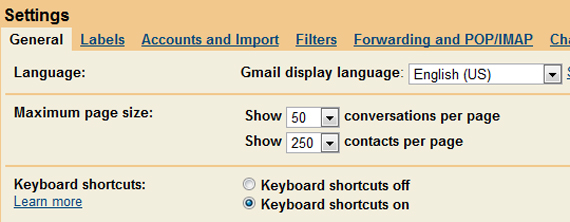
Again, go to Mail Settings and under General, select “Keyboard shortcuts on” and go HERE for the complete list of shortcuts.
Gmail Saves
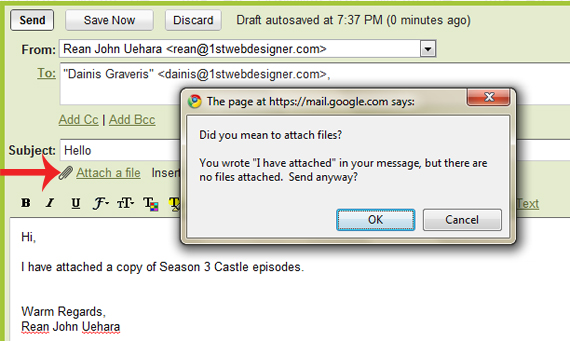
It literally does, it scans your text for the word “attachment” or “attached” and verifies if you’ve really attached something. If not, then you are notified about this, saving yourself from embarrassment.
Gmail also shows you the IP addresses from which your mailbox was accessed from, giving you a chance of catching the person (boy/girlfriend?) spying on your inbox.
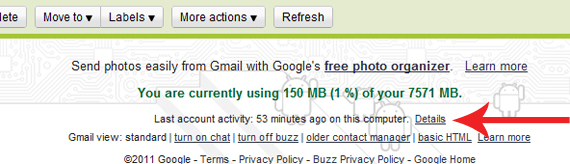
Clicking “Details” will open a window with 10 of the IP addresses that accessed your mailbox. The coolest part? Gmail warns you when someone from a foreign country accessed your mailbox, prompting you to change passwords ASAP. Through this, you can also disconnect all sessions that are open, very useful if you forgot to log out on another workstation.
While Away on Vacation
There are two ways to tell people you’re on vacation without telling them before it actually happens, to avoid boasting or something.
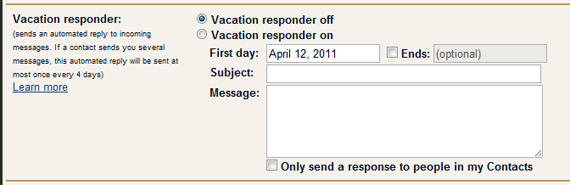
Go to Mail Settings, under the General tab look for Vacation Responder and turn it on. The message you type will be automatically sent within the dates you set for your vacation. Vacation is vacation! I know that there are few nasty employers who approve of your vacation but still pester you about every day of your holidays. Solution? Ignore them or use auto-responder.
You can also grant someone access to your account, a secretary or someone close to do your bidding.

Go to Mail Settings, under Accounts and Import click on “Add another account” and follow the setup wizard. Now you can actually rest without having to worry about your client or boss nagging at you when you return.
For a secure connection, use HTTPS.

Go to Mail Settings, under general look for Browser connection.
You can attach files by drag and drop. You can also use Gmail for backup purposes if you don’t want to use Dropbox to save your documents.
Plugins, Extensions, and other Applications
Gmail Labs
If you are familiar with Google Labs, you will love Gmail Labs for it saves you more than anything else from embarrassment! To view the experimental features, go to Mail Settings and select Labs tab.
There are instances when some contacts share the same name, couple it with haste and you’ll end up sending your e-mail to the wrong person. Solution? Got the wrong Bob?
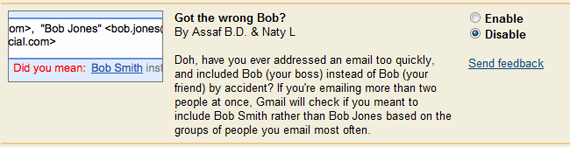
Then there will come a time when you got the name right, the message is not quite ready, but you sent it anyway. Do your self a favor and use Undo Send to save face.

You get the idea, there are lots of useful experimental features in Gmail Labs that you can use to have an easy, flowing, e-mail experience. Feel free to experiment!
PC and Mac Applications
Sparrow Mail App (Mac) – “I am insanely pleased with Sparrow.” – Stephen Fry, ’nuff said.
Firefox Add-ons
Integrated Gmail 2.6.17 – this add-on lets you keep all Google services like Google Calendar, Google Reader, and others in one place. No more 10 tabs opened.
Gmail Manager – for people with multiple Gmail accounts, very simple application, minimalists will love this.
Meeting Scheduler – simple and perfect add-on to schedule meetings with people.
Gmail S/MIME – safer conversations by sending and receiving encrypted e-mail.
Chrome Extensions
Google Mail Checker – receive notifications through an icon on Chrome, opens inbox in one click.
Better Gmail – gives users the option to clean Gmail’s interface by removing ads, footers, chat, or adding icons for specific file types (not just a clip), and others.
Remember The Milk – manages tasks in Gmail effectively, automatically adds starred messages or labels.
Mailto:Gmail – opens Gmail Compose window for Mailto: links on websites.
Now, there are tons of tips and tricks and applications that have been written and published online, and I bet you have your favorites too to share, why not make life easier for others and share them here?
The last section is dedicated to anyone who wants to catch up on some Google algorithms update.
This post may contain affiliate links. See our disclosure about affiliate links here.