Join over 55,891 Subscribers Today! FREE UPDATES!
Get The Only Freelancer crash course you will ever need to read!
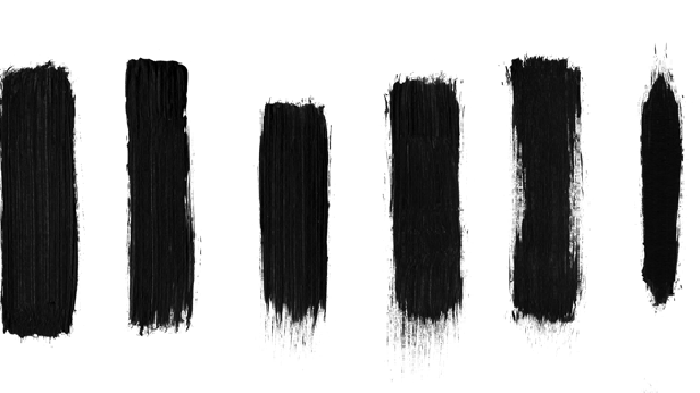
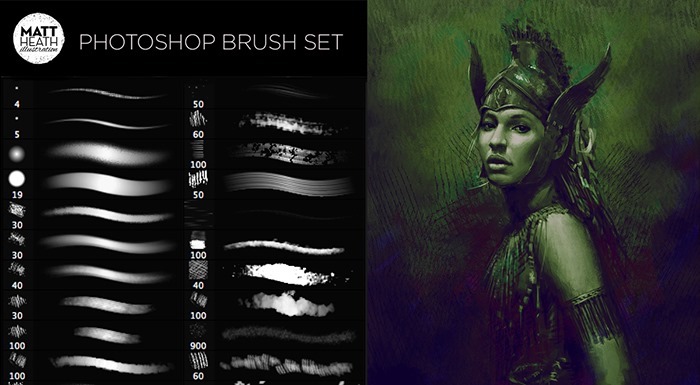
Today, we’re giving a set of high-resolution Photoshop brushes. This brush set contains 50 brushes made from geometric lines and shape. You can use these brushes freely, however we would appreciate if you use them, then just link back to original source, but it’s not 100% necessary. Use these brushes in your designs to add some subtle but stylish effect there – put them in good use!
At the end, I also wrote a short tutorial on how to create this brush set, you can use these skills to create any brush you want yourself! Want better quality – just open Illustrator and create your own specific brush set now!

Check the picture below to see the brushes in action:

Click here to download brush set.
Not a Photoshop user? Don’t worry, this brush set is also available in transparent png. Click here to download it right now!
This brush set is made using Illustrator and Photoshop. Here’s a short tutorial on how I did it.
First, open Illustrator. Create new file with size 2.500 x 2.500 px. This is the size of our brushes. You might asking, why only 2500×2500 px? Why not making it bigger? Because that’s the maximum size for brush, you can’t go bigger than that. Next, using pen tool draw two curve without fill and black stroke.

Click Object > Blend > Blend Options. Select Specified Steps with 25 next to it. Hit OK.

Select both lines and click Object > Blend > Make or ctrl+alt+B. Illustrator will automatically add 25 transition lines between the two selected lines. Hit ctrl+A then ctrl+C to select all lines and copy them to clipboard.

Open Photoshop. Create new file, size 2500×2500 px.

Paste lines into our new file by pressing ctrl+V. Click Edit > Define Brush Preset. In next dialog box fill brush name and click OK. Our first brush tip is done!

Repeat all previous steps to create another brush tip. You can go wild and try to experiment with shape like I did here.

After you have enough brush tip, click Edit > Preset Manager. Select brush tips you just created and click Save Set. Selected brush tip will be exported as a brush file (*.abr). This file can be distributed to your friends or to a site like what I’m doing right now.

Finally, I hope you like this brush set and also learn how to create your own brush set. Feel free to use it on your next artwork.
Get The Only Freelancer crash course you will ever need to read!
Mohammad Jeprie is a blogger, author, and graphic designer from Indonesia. He is the creative mind behind DesainDigital. You can find him in DeviantArt, Facebook, and Twitter.
Wednesday, January 18th, 2012 15:35
Thanks., for your tutorials and brushes
Thursday, June 9th, 2011 14:19
thanks tips for awesome brushes.
Friday, April 15th, 2011 11:28
Thanks for this I already know what I can do with these :)
Wednesday, June 16th, 2010 04:08
Very streamlined and simple-to-follow tutorial. I really enjoyed this and will definitely be making some new brushes using the information. Thanks!
Friday, May 21st, 2010 01:37
Nice tutorial. I don’t have illustrator but I like this kind of abstract brushes
Thursday, May 20th, 2010 19:55
Thanks., for your tutorials and brushes. That’s is very nice.Pls., Check the (Download Link_) I got the file but., they can’t Extract.Thanks
Friday, April 23rd, 2010 23:42
Great brush set. I have been looking for something like for a while. Thanks for creating the tutorial for this.
Monday, April 19th, 2010 16:11
Thanks for the tutorial, awesome brushes :-)
Monday, April 19th, 2010 16:06
Great Tips, Just bookmarked your website, been looking for that exact lined brush effect you have in the image above,…. hats off to you mate..
Cheers
Tuesday, April 20th, 2010 08:52
Thanks for the hat! :)
Monday, April 19th, 2010 13:44
Great brush set, thanks.
Monday, April 19th, 2010 16:06
These are some cool brushes…I always love the look of these types of concentric shapes/lines. Mini-tutorial is great also. THX!
I posted these up on my resource collection site: Resource Hive @ http://resourcehive.com/2010/04/19/50-free-photoshop-brush-set-lines-and-shapes-1st-web-designer/
Monday, April 19th, 2010 06:42
Thank You Very much…. nice tutorial and ofcourse superbbb brush set… :)
Sunday, April 18th, 2010 16:30
Very nice brush set!I used to use similar brushes like this when creating abstract bakground.
Saturday, April 17th, 2010 15:43
Lately, i just came to my friend. And he want a line brush, so i have a couple days to work on it…
I thought that it would be awesome if i upload it on my website… but it seem you upload it first… Nice post bro…
Saturday, April 17th, 2010 14:13
Just started using PS for school and I really appreciate your tips!!
Saturday, April 17th, 2010 04:44
Very nice brush set! It will be very useful when creating abstract background and artworks. I used to use similar brushes like this when creating abstract bakground. Nice share!
If not, then it's time to learn how to:
You can trust 1stWebDesigner to help you become a better web designer!
- Jacob Cass | Just Creative
Just enter your name and email below and click Get Updates!
Albert Lie
Saturday, April 17th, 2010 04:44
Very nice brush set! It will be very useful when creating abstract background and artworks. I used to use similar brushes like this when creating abstract bakground. Nice share!
Alan
Monday, April 19th, 2010 13:44
Great brush set, thanks.
John Regis
Monday, April 19th, 2010 16:06
Great Tips, Just bookmarked your website, been looking for that exact lined brush effect you have in the image above,…. hats off to you mate..
Cheers
jeprie
Tuesday, April 20th, 2010 08:52
Thanks for the hat! :)
jeprie
Tuesday, April 20th, 2010 08:50
Thanks for the hat! :)
Greg Babula
Monday, April 19th, 2010 16:11
Thanks for the tutorial, awesome brushes :-)
JC
Monday, April 19th, 2010 16:06
These are some cool brushes…I always love the look of these types of concentric shapes/lines. Mini-tutorial is great also. THX!
I posted these up on my resource collection site: Resource Hive @ http://resourcehive.com/2010/04/19/50-free-photoshop-brush-set-lines-and-shapes-1st-web-designer/
Manoj
Monday, April 19th, 2010 06:42
Thank You Very much…. nice tutorial and ofcourse superbbb brush set… :)
Veronica
Saturday, April 17th, 2010 14:13
Just started using PS for school and I really appreciate your tips!!
LizardWijanarko
Saturday, April 17th, 2010 15:43
Lately, i just came to my friend. And he want a line brush, so i have a couple days to work on it…
I thought that it would be awesome if i upload it on my website… but it seem you upload it first… Nice post bro…
sarfraz raza
Sunday, April 18th, 2010 16:30
Very nice brush set!I used to use similar brushes like this when creating abstract bakground.
Liam Kenneth
Friday, April 15th, 2011 11:28
Thanks for this I already know what I can do with these :)
tanaji
Thursday, June 9th, 2011 14:19
thanks tips for awesome brushes.
saman
Wednesday, January 18th, 2012 15:35
Thanks., for your tutorials and brushes
Alrein
Wednesday, June 16th, 2010 04:08
Very streamlined and simple-to-follow tutorial. I really enjoyed this and will definitely be making some new brushes using the information. Thanks!
PSD Box
Friday, May 21st, 2010 01:37
Nice tutorial. I don’t have illustrator but I like this kind of abstract brushes
fairuz sulaiman
Wednesday, April 21st, 2010 18:03
thanks…i find dis brush for long time
ASAD ULLAH
Friday, April 23rd, 2010 18:10
wow. its coooool. nice post.
JC Johnston
Friday, April 23rd, 2010 23:42
Great brush set. I have been looking for something like for a while. Thanks for creating the tutorial for this.
nay
Thursday, May 20th, 2010 19:55
Thanks., for your tutorials and brushes. That’s is very nice.Pls., Check the (Download Link_) I got the file but., they can’t Extract.Thanks