Join over 55,891 Subscribers Today! FREE UPDATES!
Get The Only Freelancer crash course you will ever need to read!
As we have previously seen, Tumblr allows its uses to create custom themes giving the owner of a tumbleblog the ability to truly customise their tumbleblog to be their own. While tumblr coding is fairly easy to pick up compared to other more complex blogging systems, I want to give you an insight into the code and structure we are going to be deploying next time around when we set about converting a psd to tumblr.
Before we get stuck into the Tumblr code itself, you need to first know what a Tumblr theme looks like. Gone are the gazillion template files of other CMS’s; Tumblr uses one and only one. A single page of html, with the css and scripts in the head of the file is all you’ll need.
Now that you know how a theme looks, we are going to look at two simple concepts that make our single html page into a fully dynamic tumblr blog. These are variables and blocks.
Variables are exactly what the name suggests. A place-holder tag that our data is dynamically inserted into. They are used all across the theme in anything from titles to our dates. They use curly brackets and look like this :
Blocks on the other hand are a sort of step up from variables. They are used to display chunks of html and variables for different occurrences, e.g. for each different kind of Tumblr post. They can even be used conditionally to display stuff such as next and previous page links. Like variables, blocks use curly brackets, but are defined as a block, and open and close in a manner similar to html elements.
Put these blocks and variables to user together within html, and you will end up with a theme!
As always in Html, there are several pieces of information you are going to want to include within the head of your html document, and Tumblr does not let us down. It provides us with several variables that can be deployed with great ease.
{Title} – The html safe title of your blog
{Meta Description} – An html safe description of your blog for use within the meta tag
{Favicon} – A dynamically generated favicon url from your portrait photo
{RSS} – The url to the RSS feed of your tumbleblog
<head>
<title>{Title}</title>
<link rel="shortcut icon" href="{Favicon}">
rss+xml" href="{RSS}">
<meta name="description" content="{MetaDescription}" />
</head>
Before we start displaying our posts and content, there are certain things we are going to want to display around our tumbleblog. Most of these are likely to appear in our header, such as our blog name, and logo / photo. Here are some of the variables that make this possible.
{Title} – The html safe title of your blog
{Description} – The description of your blog which may include html
{PortraitURL-64} - The url to your portrait picture. Different sizes are available (16, 24, 30, 40, 48, 64, 96, 128)
<div id="header">
<h1>{Title}</h1>
<p>{Description}</p>
<img alt="{Title}" src="{PortraitURL-64}" />
</div>
Now that we have set up the easy stuff with some basic variables, it’s time to get stuck into the more dynamic posts which are rendered with the help of both blocks and variables. The posts block is placed in the area that all our different types of posts will be displayed.
Within our posts block, we can start to branch out into our many different kinds of posts. Each of these are shown below.
{block:Text}{/block:Text} – Displays Text posts
{block:Photo}{/block:Photo} – Displays Photo posts
{block:Photoset}{/block:Photoset} – Displays Photoset posts
{block:Quote}{/block:Quote} – Displays Quote posts
{block:Link}{/block:Link} - Displays Link posts
{block:Chat}{/block:Chat} – Displays Chat posts
{block:Audio}{/block:Audio} – Displays Audio posts
{block:Video}{/block:Video} – Displays Video posts
{block:Answer}{/block:Answer} – Displays answer posts
Each different type of post has several different types of variables and further blocks that are relevant only to that type of post, but there are several variables that are likely to be used in ever post such as the link, and tags.
{Permalink} – The exact url for a single post
{ShortURL} – The sharing friendly short url for a single post
{PostID} – The unique numeric post ID for a single post
{block:Posts}
...
{block:Text}
<div>
{block:Title}
<h2><a href="{Permalink}">{Title}</a></h2>
{/block:Title}
<div>
{Body}
</div>
</div>
{/block:Text}
...
{/block:Posts}
Moving down into each specific post type itself, variables and blocks become far more specific to the post type. I won’t go into any of them as there’s a lot of them to remember, but if you feel you want to take a look at the them now, then here’s where to learn more.
The other majorly important feature you are going to want to include is pagination for your posts and pages; in both cases Next and Previous links, and lo-and-behold, Tumblr caters for both with variables and blocks.
An initial block is used to conditionally display the full pagination html, with two further conditional blocks to conditionally display each Previous and Next link. Finally, two variables are used to display the relevant destination url.
Single posts have different blocks and variables for pagination than those for pages, so here they are.
For pages, these are the blocks and variables used for pagination.
{block:Pagination}{/block:Pagination} – Only displays if there are previous / next pages to link to
{block:PreviousPage}{/block:PreviousPage} – Only displays if there is a previous page
{block:NextPage}{/block:NextPage} – Only displays if there is a next page
{PreviousPage} - Url for the previous page
{NextPage} – Url for the next page
{block:Pagination}
<ul>
{block:PreviousPage}
<li>
<a href="{<span class=">PreviousPage</a><a href="{<span class=">}">Previous</a>
</li>
{/block:PreviousPage}
{block:NextPage}
<li>
<a href="{<span class=">NextPage</a><a href="{<span class=">}">Next</a>
</li>
{/block:NextPage}
</ul>
{/block:Pagination}
Similarly, for posts, these are the relevant blocks and variables.
{block:PermalinkPagination}{/block:PermalinkPagination} – Only displays if there are previous / next posts
{block:PreviousPost}{/block:PreviousPost} – Only displays if there is a previous post
{block:NextPost}{/block:NextPost} – Only displays if there is a next post
{PreviousPost} - Url for the previous post
{NextPost} – Url for the next post
{block:PermalinkPagination}
<ul>
{block:PreviousPost}
<li>
<a href="{<span class=">PreviousPost</a><a href="{<span class=">}">Previous</a>
</li>
{/block:PreviousPost}
{block:NextPost}
<li>
<a href="{<span class=">NextPost</a><a href="{<span class=">}">Next</a>
</li>
{/block:NextPost}
</ul>
{/block:PermalinkPagination}
There are several further features that you may want to add into your theme, and as usual Tumblr caters for many of them. However, I simply wanted to go over the basics here, and not flood you with unnecessary information while learning. If you do want to continue reading, take a look at the official Tumblr documentation for these features listed below.
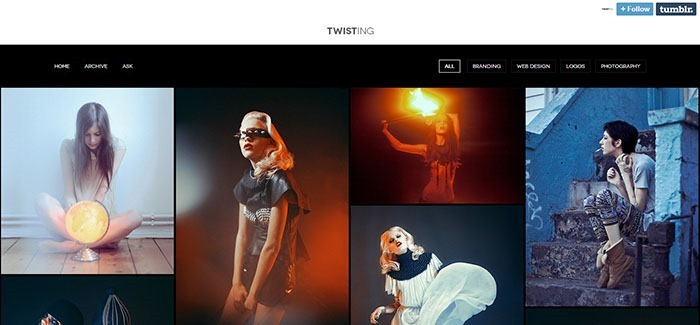
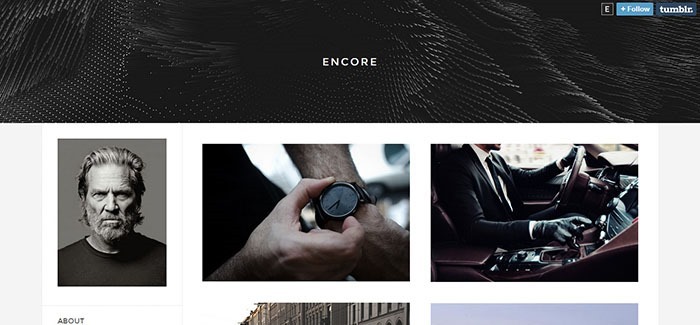
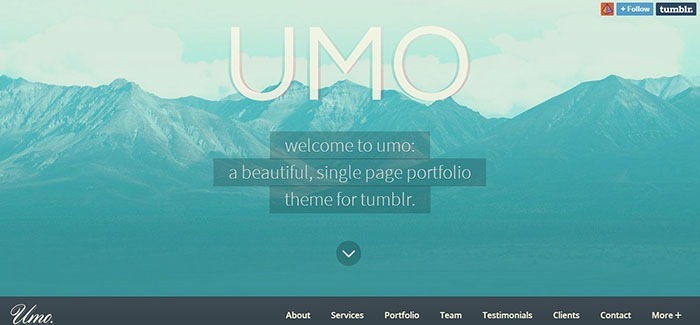
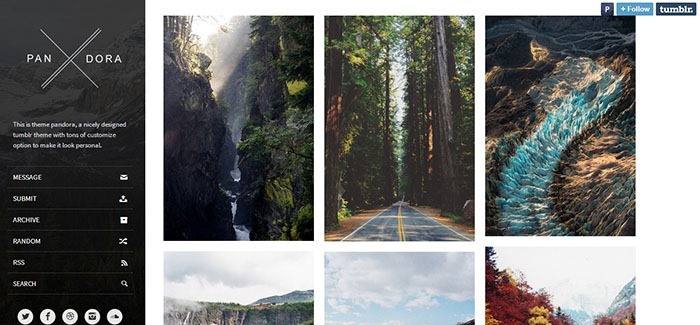
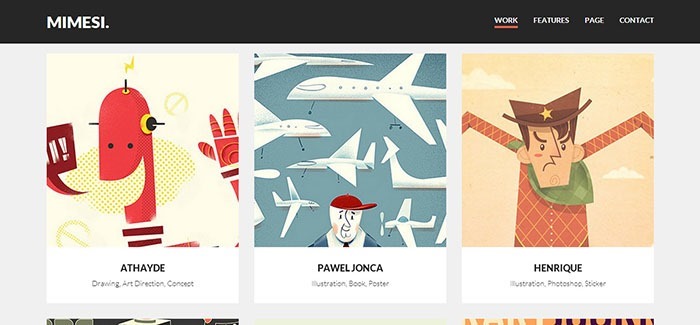
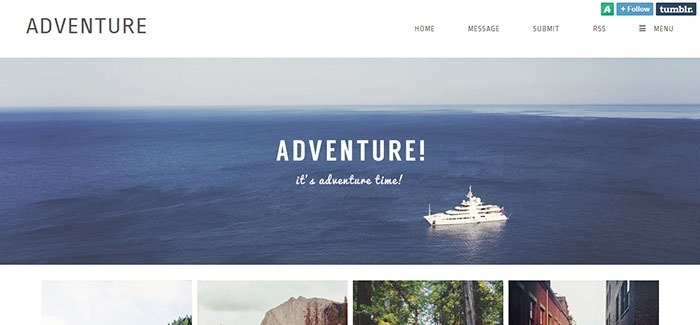
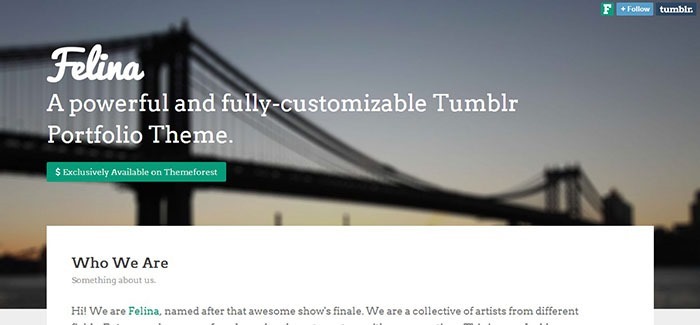
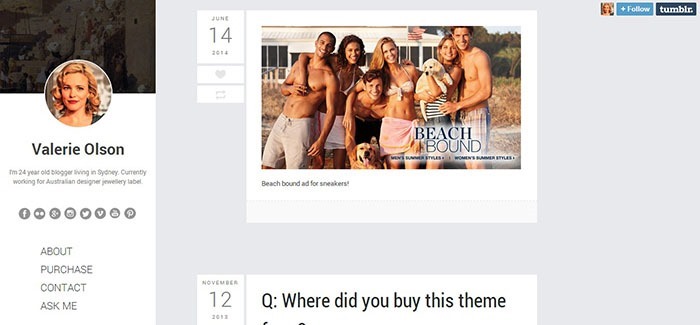
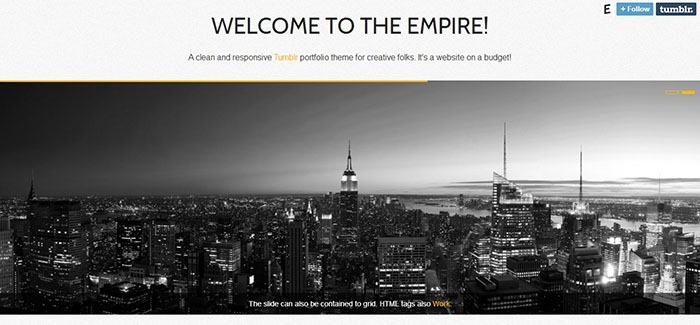
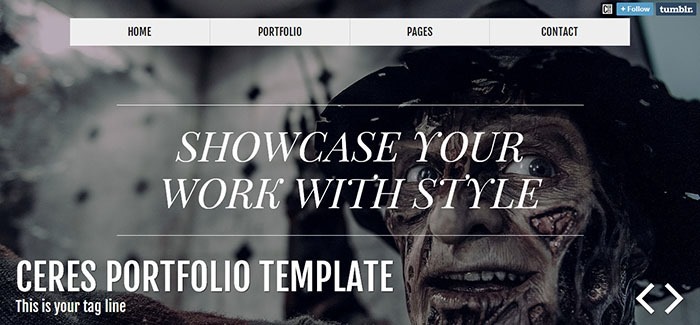
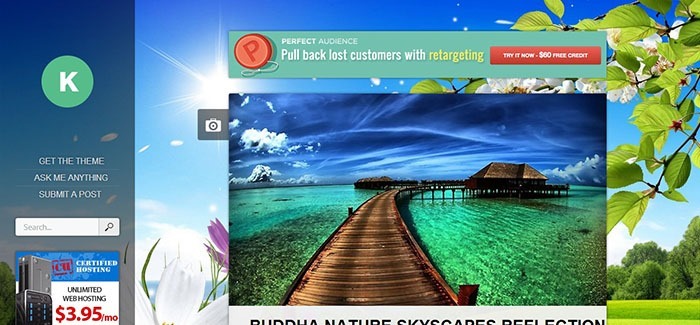
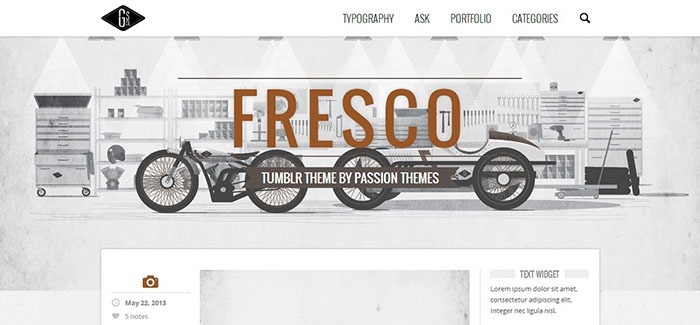
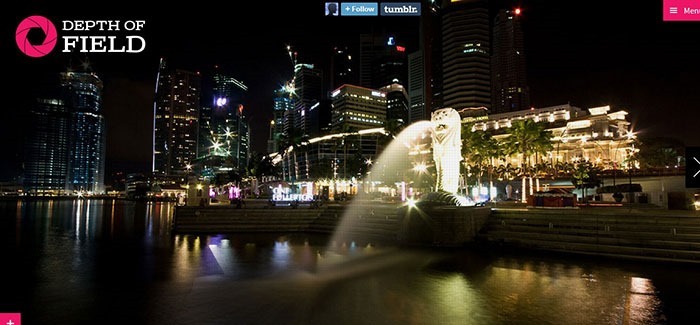
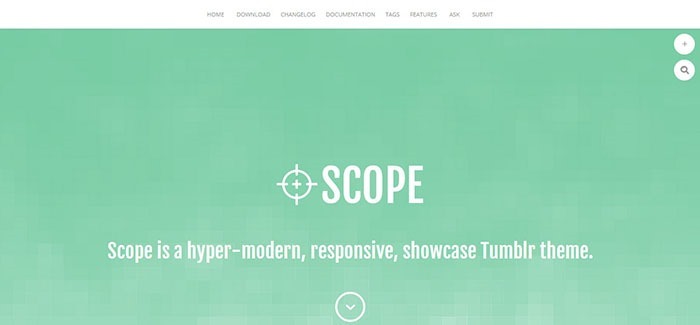
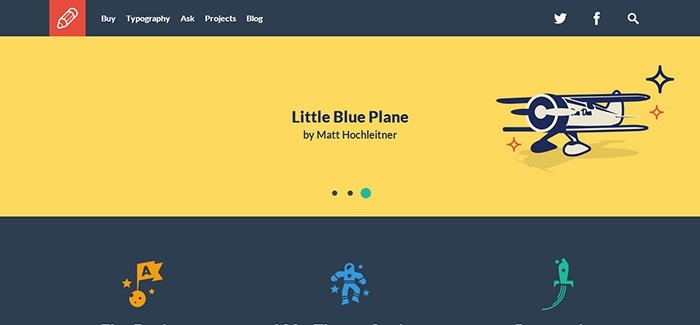
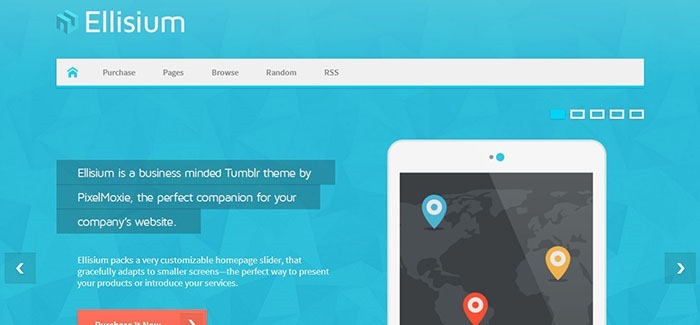
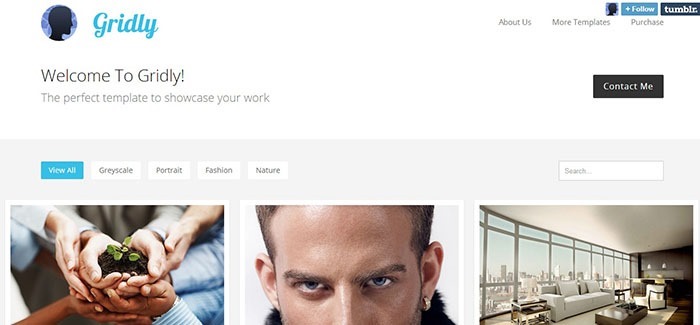
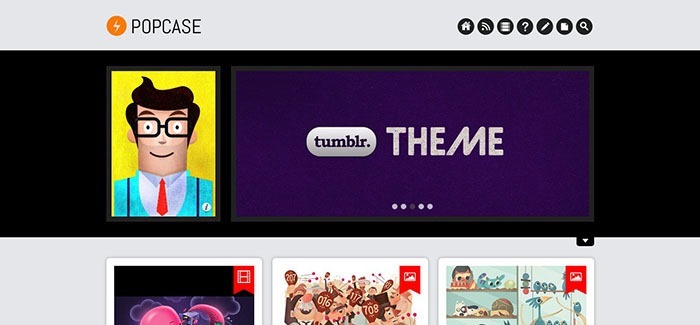
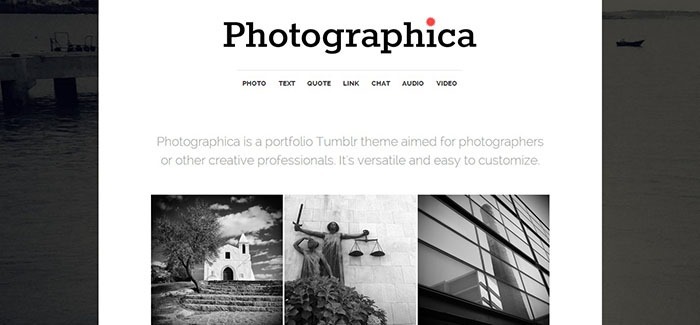
Next up is a tutorial that will teach you how to take a psd design of a tumbleblog, and turn it into a fully fledged Tumblr theme. Keep your eyes open for that, but for now, here’s a sneak peek at what we’ll be creating!
Get The Only Freelancer crash course you will ever need to read!
Matt is an 18 year old web designer from Scotland, UK. He loves creating beautiful websites across different platforms. High on his things to learn fully are Jquery and php. He is extremely excited by css3 and html5 and can't wait to see them rolled out fully. To learn more about Matt, follow him @QwibbleDesigns, or check out his portfolio.
Sunday, April 1st, 2012 21:32
hello!
i was trying to search google and happen to stumble upon your blog. i wanted to ask if you can help me with this html/css problem i have in my tumblr blog. i just made a new tumblr account. i have this theme in my head but i dont know how to execute parts of it. so here it goes. say, i have made a start/landing page and then there are links that will direct the user to a page that have blog posts with specific tags. i understand that tumblr has this option in adding pages and giving the chance to choose among standard, custom and redirect. problem is i don’t have the redirect option. i read somewhere that this option is available to old tumblr users only. so i am trying to figure out a code where i will just manually do it (directing users to a page with a specific post and of course a slightly different theme)
hope you can help me.
Wednesday, March 14th, 2012 06:28
Packaging your theme for public use is simple. Go to tumblr.com/themes (the themes garden). If you click on “submit a theme” you’ll be redirected to tumblr.com/themes/new. Make sure your theme meets all the requirements listed at the right of the screen. Type under “Title” your theme’s name and put you theme in the “source code” field. Upload a screenshot of your theme for display in the themes garden. Once that’s done, your theme is ready for others to use.
Sunday, January 29th, 2012 12:01
Did the follow up tutorial to design a psd and then code it to HTML written?
Please provide me link for that post.
Tuesday, January 31st, 2012 12:00
I am waiting…
Saturday, January 28th, 2012 05:28
Nice writeup — I actually created a framework that speeds up Tumblr theme development by a lot. Let me know what you guys think of it: https://github.com/galengidman/tumblr-framework
Tuesday, January 10th, 2012 10:03
wats with all those random letters like and stuff, i want to be a theme maker so i neeeeeeeed to understand these
Friday, October 28th, 2011 07:22
Can someone just make a dang program that does this for you? I never will understand all this programming stuff.
Saturday, December 24th, 2011 17:20
Yah it’s to fucking long who’s gonna read all this?
Monday, January 2nd, 2012 02:21
Can’t tell if trolling…or lazy.
Friday, October 28th, 2011 07:21
After the first part they said now we are done with the easy stuff, now let’s get into the more complicated. I’m sorry, but all of that was confusing as Hell.
Saturday, November 5th, 2011 19:41
ahaahhah yeahhh!
Monday, October 24th, 2011 13:53
Thanks for the write up! Also, just a heads up, your RSS feeds aren’t working. Could you take a appear at that?
Wednesday, October 12th, 2011 05:36
Please please post the psd follow up!
Friday, June 10th, 2011 08:45
This is basically the same as the Tumblr tutorial. It helps, but only if you know the very basics and stuff.
Monday, May 23rd, 2011 15:24
A decent primer, I suppose, but all in all there are some gaps and open-ended concepts here. I take it the planned sequel article was shelved?
Sunday, May 1st, 2011 18:37
this, is all too confusing. I did not understand any of this, at all, whatsoever.
Sunday, May 1st, 2011 08:20
Hi…this post is pretty old and I can’t find the next tutorial, do you still thinking do it?..I hope you do because is hard found good tutorials about tumbl thems
Wednesday, March 9th, 2011 22:53
I was waiting for the tutorial to take a psd design of a tumbleblog, and turn it into a fully fledged Tumblr theme
Tuesday, February 1st, 2011 03:59
Any intention of expanding on this or posting up your PSD tutorial? I’d love to read it.
Sunday, February 13th, 2011 23:33
I was wondering the same thing, it’s over 6 months ago that this was published =\
If not, then it's time to learn how to:
You can trust 1stWebDesigner to help you become a better web designer!
- Jacob Cass | Just Creative
Just enter your name and email below and click Get Updates!
toufik
Monday, June 21st, 2010 12:26
hei matt, thank u for posting this.
cheers :)
ani
Tuesday, June 29th, 2010 13:28
hey i kinda sorta got it o_o but for some reason after adding the code for blocks, i end up getting bullets for every post and i dont know how to fix it. i cant find one single bullet in the html lol. perhaps yu can help?
carréra
Monday, June 28th, 2010 17:21
Really liked your tut. though you look like justin bieber in your pic o.o
Matthew Corner
Tuesday, June 29th, 2010 01:56
Oh dear, time for a haircut methinks =D
Glad you like it.
Matt
Mia Shurden
Thursday, July 29th, 2010 06:08
Hello. I am trying to edit a tumblr theme. The one I have wont allow the text that comes along with photo’s to show. I can’t figure out how to fix it. Not sure what I’m doing wrong. Help?
Thank you.
Tom
Sunday, August 1st, 2010 04:59
When will the psd to tumblr theme tutorial be available? And will it show you how to upload online, and insert tumblr codes? Because i have some knowledge of html coding, but i really need a step by step, from start to finish process , in order to understand and learn. Thanks
andy
Monday, August 23rd, 2010 19:17
hey matthew,
i’m still waiting for your “psd to complete tumblr” tutorial
thanks
Erica
Wednesday, October 13th, 2010 19:06
My tumblr isn’t showing all my posts. It only shows the most recent post when I make multiple posts a day. Could someone please help me with the coding, so it shows all my posts in a day, instead of JUST the most recent. email me please!!!
David
Friday, September 24th, 2010 07:35
hey matt whats the normal price for coding a simple tumblr theme? hope u can help me.
Saad Bassi
Friday, September 24th, 2010 08:43
A psd design is usually charged 500$ to be converted in a tumblr theme.
tsquez
Friday, September 17th, 2010 02:27
Any idea when the next part is going to be available? if it is i can’t find it?
Frederic Bartl
Thursday, August 26th, 2010 15:39
Awesome! THX… cant wait to see the psd to T tut !
thei
Wednesday, September 1st, 2010 07:35
i want to move my widget on the right side of my page. how do i do that?
Bianca Filoteo
Saturday, June 26th, 2010 17:50
Thanks so much for writing this post, Matthew! It came just in time, too, because I’m starting to really want to design my own Tumblr themes but didn’t know where to start! Looking forward to your next Tumblr tutorial post :)
Matthew Corner
Tuesday, June 29th, 2010 01:58
Glad you like it Bianca. The writing of the next article is underway, and I can’t wait to publish it =)
MIchael
Monday, June 21st, 2010 15:25
Thanks for this Matthew (Matt?).
I just reworked the cosmetics of Solstice by Jake Paul, and the whole while I was thinking “hmm, keep an eye out for an intelligent and fairly easy tutorial on building a Tumblr theme.”
I’ll use this to redesign my social-hometown-photo-sharing tumblr site at aroundmytown.us
Again Matthew, thanks!
P.S. Should you have a photo of your town to share, by all means, please do so!
Matthew Corner
Monday, June 21st, 2010 19:49
And Matt, Matthew, either go =D
Matthew Corner
Monday, June 21st, 2010 19:49
Keep an eye open for the psd to html tutorial then, you may pick up some tips =)
Betik
Monday, June 21st, 2010 13:52
From what you’ve written there. Surely it’s looks easy to make.
I think i should try it once a while :P
Matthew Corner
Monday, June 21st, 2010 19:51
I guess it’s just like html, remembering the tags. Only thing that’s different is that you have a set of conditional tags as well =D
Bettie
Friday, June 25th, 2010 10:03
owh well.i guess a hands on experiment will show the easiness of developing the tumblr right?
Thanks again for your time! :)
Izzat Aziz
Monday, June 21st, 2010 18:47
I read the tumblr theme documentation last night, and one thing that come to my head is that “wow, that easy”.
Before this i’m user and die hard fan of wordpress (still now) play around with creating wordpress theme is a bit complex (but if you learn plone, you know wordpress is much easier) but for tumblr it really simple.
Like I say I read the documentation last night, and using the theme i made today. You can see at my blog, well it pretty simple.. but for one day work I think that pretty good.
For me to make theming the tumblr much easier, design the layout in html form, try make it look like it supposed to look in tumblr. Because when you done that, everything else simply copy and paste.
Can’t wait for your next tutorial though :)
federico totti
Monday, June 21st, 2010 15:58
Loved it, I’m starting to use tumblr now!