How to Setup local host with Latest Apache, PHP and MySQL Packages

Posted in 1104 days ago • Written by 111 Comments

How to Setup local host with Latest Apache, PHP and MySQL PackagesTesting many things (CMSes, themes etc.) on the internet for me and many others is sometimes a big pain and it has many disadvantages. You need to buy a domain, to pay for hosting, to use your internet providers slow upload speeds to upload a files over ftp, whenever you want to change some configuration of Apache or PHP you have to contact your hosting provider and wait some time until they response and I could continue with other disadvantages.

There are many all in one packages, which will install all together like WAMP or XAMPP, but I do not like them. In my opinion, they make a lot of uncontrolled rubbish on the computer and they are not often up to date. But they are good as a very fast solution for people who do not want to learn how it all works and they only need the fastest way to install local web server, to test their projects.

This tutorial is more complicated, than WAMP or XAMPP solution, but the biggest advantage is that you have all over your control – because you configure all by yourself. And you can be always up to date and enjoy the latest fixes and improvements in Apache, PHP and MySQL packages. As soon as you master this tut, you will agree that local web server can be installed, using original packages, in few minutes, like the WAMP or XAMPP. Updating with new packages is also really simple. Just install the new package over the existing one and that is it.

Who Should read this Tutorial?

This tutorial is great for web developers and web designers, who needs real-time testing of web-based applications or themes for WordPress, Joomla, Drupal without a need of internet connection or web hosting. It should also cover and beware of all most important mistakes and unexpected errors, which sometimes happen and which other tutorials do not cover. So users who will follow this tutorial step by step, should have working localhost web server in 99,9 %, without any unexpected errors. I decided to write this tutorial, because I followed many tutorials on the web, but I was not able to get all work for the first time, so I spent many hours of searching and fixing unexpected errors, which are all covered in this tutorial.

Quotes in tutorial

I often use quotes to put syntax, commands, login names, passwords, paths and names of the folders between them. So whenever you see quotes in the tutorial, always use only what is between the quotes, it will be marked as bold text too. Sometimes there are quotes between quotes, theese quotes (between quotes) are important to use them in configuration files.

Requirements

This tutorial was made on 32bit Windows 7 Ultimate in VMware Player, but I am using it on a real installation of 64bit Windows 7 Ultimate without any problem. I have also used it in on 64bit version of Windows Vista Ultimate before. So in that case it should work on any Microsoft operating system. Even if the packages are 32bit they do work on 64bit operating systems without any incompatibility issues. There are unofficial 64bit packages for Apache and PHP, but their installation is much complicated and they are not often updated. Only official support for 64bit operating systems has MySQL, but it would not work properly with 32bit Apache and PHP.

Downloads

Apache 2.2.15 win32 x86 no ssl msi

PHP 5.3.2 VC6 x86 Thread Safe Installer

MySQL 5.1.46 x86 32-bit MSI Installer

phpMyAdmin 3.3.2 zip

Optional – WordPress 2.9.2

If you find any new versions on these packages, you can use them too, the steps will be the same.

Pre-installation Steps

  1. For better orientation I often create specific folder structure for installation and for the folder where my test web pages are stored. I recommend you to follow the same structure; otherwise you will have to change all paths to your own settings during the tutorial steps. First directory I create is directory called “dev” (from the word development) in the root of “C:\“. Second directory I create is called “progs” in “C:\dev\” and third is called “www” in “C:\dev\” So after that you should have three new directories.
    C:\dev\
    C:\dev\progs\ – for the installation of Apache, PHP and MySQL
    C:\dev\www\ – this folder is like the ftp folder on your hosting, so you will extract all your webpages here
  2. Users of Windows XP can skip this step! It is for Vista and Windows 7 users! Disable UAC! You will do it by clicking on Start>Control Panel>User Accounts and then click on “Change User Account Control settings”. On the next window (remembering the default position of the slider) pull the slider down to “Never notify me when:…”, click on OK and close the windows. Vista users – just turn off User Account Control. Do not restart the computer now! For security reasons the slider should be reverted to default settings after successful installation of Apache, PHP and MySQL.
  3. Modify the Windows hosts file. In some cases I could not get the installation work until I did this step. I did not test this on Windows XP, so XP users can also probably skip this step, because in my opinion it is not needed. This file call hosts is often placed in “C:\Windows\System32\drivers\etc\“, it is hidden and it is read only. To see hidden files go to Start>Control Panel>Folder Options, click on tab “View”, select “Show hidden files, folders, and drives” and then click OK. On x64 systems it will not be visible in 3rd party 32bit file managers like Total Commander even if you set settings to see hidden files and folders, because 32bit programs can not see 64bit files and folders. So navigate to this directory through Windows native file Explorer to get to hosts file properly. Open the file in notepad, search for the line: “#          127.0.0.1          localhost“, delete the “#” symbol, save the file and now you can now restart the computer to apply both settings.

Now we are done with pre-installation Steps.

Apache installation and configuration

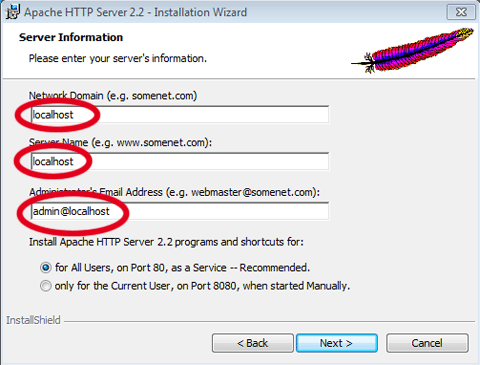
Run the installation of Apache, click next, check that you accept the terms, click next and next again. On the next screen fill the Server settings, like on the picture below and click next again.

How to Setup local host with Latest Apache, PHP and MySQL Packages

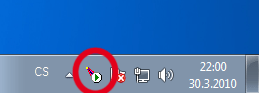
On the next page select Custom Setup Type and click next. All features leave as they are, change only the installation path to “C:\dev\progs\Apache\” and click Next. Now click install. After the installation you should see new icon on a windows taskbar with small green triangle which signalizes that apache is installed and running.

To test it properly open Internet Explorer, Firefox or whatever browser you are using and write “localhost” to your address bar, if everything went well you should see “It works!“.

Now we need to edit Apache configuration file! Go to the folder “C:\dev\progs\Apache\conf\” and open the file “httpd.conf” in Notepad. For better, more comfortable editing, I recommend advanced text editor like Adobe Dreamweaver or free PSPad, because you can see line numbers and navigation through the text file will be more comfortable.

  1. Go to line 117 or search for “#LoadModule rewrite_module modules/mod_rewrite.so” and delete the “#” at the start of the line – in other words uncomment the line (good for nice URLs)
  2. Go to line 178 or search for “DocumentRoot “C:/dev/progs/Apache/htdocs”” and replace it with “DocumentRoot “C:/dev/www”
  3. Go to line 205 or search for “<Directory “C:/dev/progs/Apache/htdocs”>” and replace it with “<Directory “C:/dev/www”>“
  4. Go to line 208 or search for “Options Indexes FollowSymLinks” and replace it with “Options Includes Indexes FollowSymLinks MultiViews
  5. Go to line 225 or search for “AllowOverride None” and replace it with “AllowOverride All
  6. Go to line 240 or search for “DirectoryIndex index.html” and replace it with “DirectoryIndex index.html index.htm index.php
  7. Go to line 382 or search for “AddType application/x-gzip .gz .tgz” do not replace anything, just add new line below this line with text “AddType application/x-httpd-php .php

That is it, save the file, exit the editor and restart Apache. You can do it by clicking on the taskbar Apache icon and then move the cursor on the Apache 2.2 and click restart. At this state if you point your browser again to “localhost” you wont see “It works!” but just something like “Index Of”. Do not worry, it is due to changing the directory from where the Apache translates the webpages. Apache installation and configuration is now completed!

PHP Installation and configuration

Run the downloaded PHP install package. Click Next, accept the terms and click Next again. On the next screen click Browse and navigate the installation program to install PHP to “C:\dev\progs\PHP\” and click Next. Now select Apache 2.2.x Module and click Next again. At this step you need to tell the installation program where the Apache configuration file (we have edited in apache configuration) is. So navigate the installation by clicking on the button Browse to the directory “C:\dev\progs\Apache\conf\” and click Next. On the next screen click Next again and then on the Install. If all went well you should see following new lines at the end of Apache configuration file “httpd.conf“:

#BEGIN PHP INSTALLER EDITS – REMOVE ONLY ON UNINSTALL
PHPIniDir “C:/dev/progs/PHP/”
LoadModule php5_module “C:/dev/progs/PHP/php5apache2_2.dll”
#END PHP INSTALLER EDITS – REMOVE ONLY ON UNINSTALL

Now we need to configure the PHP configuration file “php.ini” which is in the folder “C:\dev\progs\PHP\“, so open it in Notepad, PSPad or Dreamweaver and change the lines like this (the PHP should also work with the original php.ini, but these changes are recommended for more comfortable using):

  1. Go to line 458 or search for “memory_limit = 128M” and change it to “memory_limit = 512M” (define how much memory can PHP use)
  2. Go to line 531 or search for “display_errors = Off” and change it to “display_errors = On” (if there are some errors it will be shown in web browser, if this settings are set to on)
  3. Go to line 542 or search for “display_startup_errors = Off” and change it to “display_startup_errors = On
  4. Go to line 728 or search for “post_max_size = 8M” and change it to “post_max_size = 100M
  5. Go to line 879 or search for “upload_max_filesize = 2M” and change it to “upload_max_filesize = 2000M
  6. Go to line 959 or search for “;date.timezone =” and replace it with “date.timezone = “XXX/XXX”“. Where the XXX/XXX means your actual position, for me it is Europe/Prague, to find your position look here. For example for people living in Brazil – Sao Paulo, it should look like this “date.timezone = “America/Sao_Paulo”

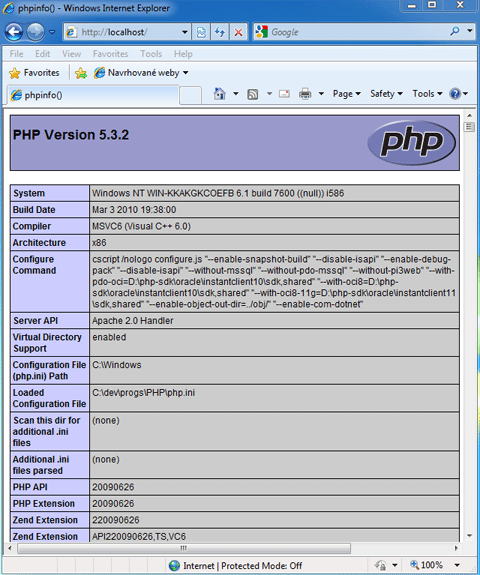
That is it save the file, exit editor and restart Apache. Now we need to test if PHP works. So navigate to directory “C:\dev\www\” and create new text file called “index.php” and put this”<?php phpinfo(); ?>” as a text inside, save the file and exit. Open your web browser and point it to “localhost“. If PHP is successfully installed you should see the same like on the following picture.
MySQL Installation and configuration

This is the easiest part, because all is configured in installation wizard. Just run the MySQL installation file. Click next, choose Custom and then click Next, change the installation directory to “C:\dev\progs\MySQL\“, click Next once more and then Install. After the installation completes you will see other screen, so once again click, Next, Next, check “Configure the MySQL server now” and uncheck “Register the MySQL server now“, then click Finish. On the next screen click Next, then select “Detailed Configuration” and click Next, select “Developer Machine” and click Next, select “Multifunctional Database” and click Next, other screen leave as is and click Next, select “Decision Support (DSS)/OLAP” and click Next. Now check “Enable TCP/IP Networking“, leave port number 3306, check “Add firewall exception for this port“, check “Enable Strict Mode” then click Next. Select “Best Choice For Multilingualism” and click Next. Check “Install As Windows Service“, select service name “MySQL5“, check “Launch the MySQL Server automatically” and check “Include Bin Directory in Windows PATH” then click Next. Check “Modify Security Settings” and as a “New root password” use “root” without the quotes, confirm password, other things leave as they are and click Next. Last step is to apply all settings we have done, so click on Execute and wait until you see this:
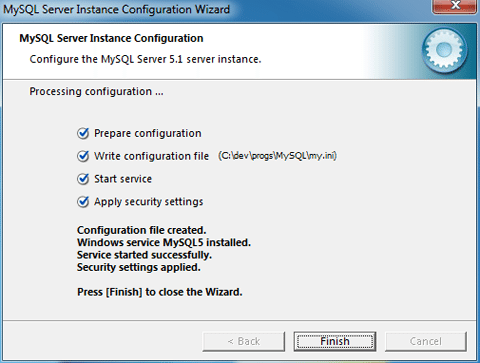
If you do not see this picture there is something wrong. And it should be many things. I will try to help in comments. But I expect there will not be any problems.

phpMyAdmin installation and configuration

phpMyAdmin is web-based MySQL database manager. For me personally it is the best and easiest solution for managing and creating databases even if it runs on localhost. There is a solution from MySQL developers called MySQL GUI Tools, which runs on Windows operating systems, but it is not providing the easiest survey and it is a bit chaotic for me. Also many users using web hosting services for their web pages knows phpMyAdmin very well. I often install WordPress, Drupal, Joomla and vBulletin together to test themes etc. and I use single database for each CMS so that is why I use phpMyAdmin, which allows me to create databases in friendly way without knowledge of MySQL command line.

We will start with creating a directory called “pma” in “C:\dev\www\“. Now open the zip file with phpMyAdmin and extract all content of directory “phpMyAdmin-3.3.2-all-languages” to “pma” directory. Now open your favourite web browser and point it to “localhost/pma” if you are lucky, you should see phpMyAdmin login screen. You can login to phpMyAdmin by entering “root” as login name and password.

Sometimes on Vista and Windows 7, maybe on XPs operating systems too, you will get some kind of error saying that PHP is not installed or configured properly. This is one of the very often unexpected errors which I was searching for a solution for many hours, before I solved it! The solution could be simple – first is go to the directory “C:\dev\progs\PHP\“, find file called “php5ts.dll” and copy it to “C:\Windows\” and “C:\Windows\System32\” directories and restart the Apache. Maybe Apache will refuse to start and it will show some error, if so, ignore the error and start him again, it should work now! :) After this fix you should see phpMyAdmin login page by pointing your browser to “localhost/pma“. If the first solution did not help the problem has a lot to do with Windows write folder permissions and PHPs session save path and Temp directories. PHP have no rights to write to desired Temp directories. This problem is really individual and if someone will report it in comments I will help him/her individually.

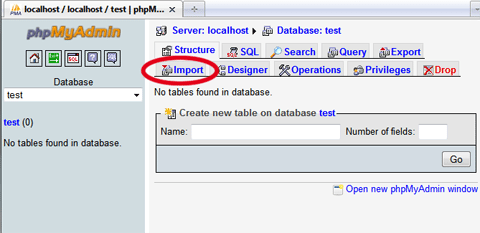
So log in to phpMyAdmin and you will get to the phpMyAdmin database administration interface on the left panel, you will see actual databases, which is important to run MySQL properly, so do not delete them at any time. On the right side you will see some information about your web server, you can change a theme or language or create new database. On the bottom you will see some errors, which we are going to fix. For basic use it is not necessary, but I can’t stand something showing errors :-) First we must create some tables to unlock phpMyAdmin’s full potential, so at the left panel click on database called “test” and then click on the “Import“.

After that click on Browse button and navigate phpMyAdmin to folder “C:\dev\www\pma\scripts\” and select file called “create_tables.sql” and in phpMyAdmin right bottom corner click on “Go“. It will create new database called phpmyadmin with 9 tables. It will be used for phpMyAdmin advanced features, like creating PDFs etc. You can close the browser and look forward for the last part – editing phpMyAdmin configuration file :-). So go to the folder “C:\dev\www\pma\” and open file “config.sample.inc.php” in Notepad, Dreamweaver or PSPad.

  1. We need to edit line 18 defining the blowfish secret passphrase. It is completely up to you what you enter between the quotes so it can look for example like this “$cfg['blowfish_secret'] = ‘ 1M41Oie6q9E3w#7U0M^3f3Tyzr5r93 ‘;
  2. Go to line 36 and replace “$cfg['Servers'][$i]['extension'] = ‘mysql’;” with “$cfg['Servers'][$i]['extension'] = ‘mysqli’;”
  3. Now we need to delete “//” at the start of the following lines:
    $cfg['Servers'][$i]['controluser'] = ‘root’; (also change default pma user to root)
    $cfg['Servers'][$i]['controlpass'] = ‘root’; (also change default pmapass password to root)
    $cfg['Servers'][$i]['pmadb'] = ‘phpmyadmin’;
    $cfg['Servers'][$i]['bookmarktable'] = ‘pma_bookmark’;
    $cfg['Servers'][$i]['relation'] = ‘pma_relation’;
    $cfg['Servers'][$i]['table_info'] = ‘pma_table_info’;
    $cfg['Servers'][$i]['table_coords'] = ‘pma_table_coords’;
    $cfg['Servers'][$i]['pdf_pages'] = ‘pma_pdf_pages’;
    $cfg['Servers'][$i]['column_info'] = ‘pma_column_info’;
    $cfg['Servers'][$i]['history'] = ‘pma_history’;
    $cfg['Servers'][$i]['tracking'] = ‘pma_tracking’;
    $cfg['Servers'][$i]['designer_coords'] = ‘pma_designer_coords’;

Save the file in the same folder as “config.inc.php” and exit the editor. phpMyAdmin should now work without any errors and we are done with whole installation of localhost web server. Now you can restore your UAC settings as we were talking about at the beginning.

Optional – installing CMS (WordPress 2.9.2)

First we must create new database for WordPress, so login to phpMyAdmin and under the text “Create New Database” fill the name “WordPress” and click on Create. Now go to folder “C:\dev\www\” and create new folder called “wp“. If you have downloaded the WordPress 2.9.2 installation open the zip file and extract all content of the WordPress directory to “C:\dev\www\wp\“. Open your browser and point it to “localhost/wp“, If all was done well, you should see first WordPress installation page, so click on “Create a Configuration File” and then on “Lets go!” On the next page. On the following page fill database name, which is “WordPress” and User Name and Password which is the “root” for both. This is password for WordPress to write tables in the database not for accessing CMS admin panel. All other values can stay as they are, click “Submit” and then “Run the Install“. Fill the Blog title, as you wish and in the email field, fill any true email address, sending emails will not work because our Apache is not configured for sending emails, but who cares? We do not need it on localhost! ;-)Then continue with install. On the next screen it will be shown your login and password, write it down somewhere and click on “Log In” to get to the WordPress admin interface, you can change here the password to something easier to remember. You are done. If you point your browser now to “localhost/wp” you will see something like this:
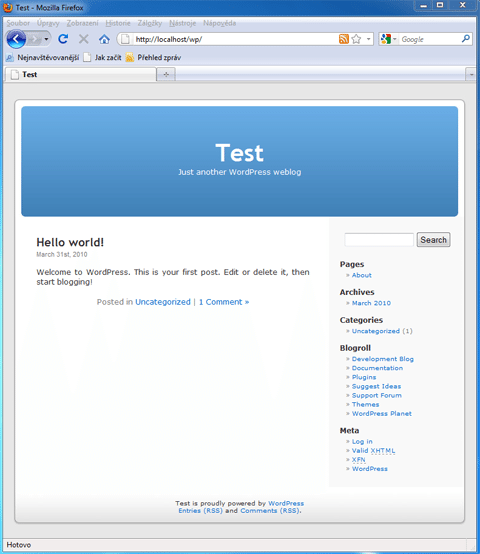
Now you now basics of how to install any other CMS you prefer, installations of Drupal or Joomla are very similar.

Conclusion

I told you that it is not so complicated ;-) If you are like me, you like a good coffee, in your favourite café (which unfortunately has no internet connection), you like to work in company of people and not being alone at home or office, you will probably appreciate this tutorial. Most of you are most likely using WAMP or XAMPP solutions, some of you are using my solution in most advanced way, which Apache configurations offers, but I know many web designers and web developers, who do not know about these solutions and this tutorial is exactly for them.

If you are facing any problem, then let me know and I will try my best to help you.

Join over 55,891 Subscribers Today! FREE UPDATES!

Get The Only Freelancer crash course you will ever need to read!

1 Written ArticlesWebsite

Hey there, I am Tomas Varil and I am from Prague, Czech Republic. I am a freelance graphic designer. I study biology at the university and graphic design is my hobby for 6 years. Last 8 months I am trying to built my own freelance portfolio and start my freelance career. You have something to tell (ask) me? Please do not hesitate to contact me on tomasvaril.com, Twitter, Behance or LinkedIn.

111 Comments Best Comments First
  • Tomas Varil

    Thursday, May 13th, 2010 13:27

    1

    Sorry guys, I have found that I lost some text in tut. In Apache configuration number 3. There is:

    Go to line 205 or search for “progs/Apache/htdocs”>” and replace it with ““

    there shuld be:

    Go to line 205 or search for “” and replace it with ““

    We will fix it as soon as possible.

    T.

    0
  • Alexander

    Friday, June 11th, 2010 01:37

    37

    Thank you for your help. I have a question about the PHP setup.

    Apache is installed successfully.

    PHP 5. 3.2 is installed successfully.

    When testing the index.php, it is giving text instead of the HTML page.
    I doubled check all the steps and still get the same thing .

    0
    • Tomas Varil

      Friday, June 11th, 2010 12:58

      38

      If you open Apache Service Monitor from your taskbar can you see Apache/2.2.15 (Win32) PHP/5.3.2 at the bottom?

      0
      • MikeE

        Tuesday, July 6th, 2010 00:09

        41

        When I look in the service monitor I see the apache2.2.15 (win32) PHP/5.2.13 at the bottom.
        Any ideas to resolve as I also had previous installations which I removed including the install directories. I then reinstalled apache which worked and showed the “It Works” entry. PHP was also reinstalled and does not seem to function even though it is showing as part of the Apache Service Monitor.

        0
        • Tomas Varil

          Thursday, July 8th, 2010 14:54

          43

          Hey MikeE, I did not understand what is your problem? The same like Alexander have written before?

          0
  • Leandro

    Thursday, July 1st, 2010 15:50

    39

    It’s just amazing. Thanks a lot! =D

    0
  • Rodney

    Thursday, July 1st, 2010 13:43

    40

    Hi
    I have 2 websites that i will be using php for , is it possible to have both on my localhost for editing purposes and if so how would i change the local host location in PHP … i know how to do this in IIS very easily but can’t figure out how to do this in php
    Thanks

    0
  • Mike

    Thursday, July 8th, 2010 06:58

    42

    I did exactly all steps you provided but restarting apache produce message “not able to load dynamic c:\dev\progs\php\ext\php_curl.dll
    library specified module could not be found” but this file is there ?
    Also, after changing configuration in httpd.conf typing localhost
    still produced “It work” instead “index of”. Any ideas why it happened ?
    Operating system on my machine is XP professional with service pack 3.

    0
    • Tomas Varil

      Thursday, July 8th, 2010 15:06

      44

      I have got this problem in XP Mode on Windows 7. When I need to downgrade to PHP 5.2.13 because I need to install Zend Optimizer which does not work with PHP 5.3.X. I did solve this php_curl.dll issue. But I cannot remember how I did that exactly :-( I think I solved this issue by copying ssleay32.dll and libeay32.dll from PHP directory to Apache/bin directory and that solved my issue with Apache crash when loading php_curl.dll library.

      If Apache is showing “It works!” you should first clear cache of your browser and try it again. If that does not help, look in the httpd.conf file, if you specified the path from where the Apache should load the web pages. There is nothing other what can be done about this issue.

      0
  • Bob

    Monday, July 26th, 2010 11:52

    51

    Great tutorial. Apache successfully installed, PHP successfully installed. On the final installation screen for mySQL get a red x by start service. Cannot created Windows service for MYSQL5. Error:0.

    0
    • Bob

      Monday, July 26th, 2010 12:22

      52

      Actually, I did manage to get rid of the Error: 0, which was being caused by an old service not getting uninstalled. All the same, it is not starting the service.

      0
      • Bob

        Monday, July 26th, 2010 13:28

        53

        It helps to read, don’t you know … was installing the 32-bit version on a 64-bit machine. There was also a MySQL folder in the hidden Program Data folder that wasn’t getting deleted. NOW the service is running =-) and now I can continue with the rest of the tutorial. Hope this provides some info to those who run into the same problems.

        0
  • mekibebe

    Tuesday, July 27th, 2010 16:14

    54

    wow! nice tutorial .it’s easy to understand and work with it. For me all things are done properly thanks a lot. finally, i need other tutorial for Linux(fedora 11) on the same title or what is the difference is there ,if you can .

    0
    • Tomas Varil

      Monday, August 2nd, 2010 20:46

      55

      Hello, sorry it took me so long, but I was on a vacation. I do not know how it is on fedora I have tested it only in Ubuntu and it is very simple due to packages manager. So I think it will be similar on fedora if it has its packages repositories. If you are interested I can point you on how to install it on Ubuntu…

      0
  • Rick Shieh

    Friday, July 16th, 2010 12:32

    49

    Hi Tomas,
    Great tutorial! Thanks! I have followed your instructions to install Apache 2.2.15, PHP 5.3.2, MySQL 5.1.48, and PHPMyAdmin 3.3.4 on my Windows 7 64 bits operation system. I can successfully connect to Mysql database by using mysql_connect(“127.0.0.1″,”root”,”mypassword”) and see PHPMyAdmin login screen. However, I get a blank screen (White Screen of Death) after I enter my user name and password and IE say “Waiting for Http://localhost/PHPMyAdmin/index.php….”. I am appreciated if you can help me to resolve this problem. Thanks in advance.
    Best regards,
    Rick Shieh

    0
    • Rick Shieh

      Monday, July 19th, 2010 16:00

      50

      After I changed the host from “localhost” to “127.0.0.1″ on config.inc.php, the problem has been resolved.
      $cfg['Servers'][$i]['host'] = ’127.0.0.1′;

      0
  • MikeE

    Thursday, July 8th, 2010 20:32

    45

    Ok Solved my problem. Firstly I used the V9 PHP which is meant for IIS. I then downloaded the V6 version of PHP with the windows installer. I still had the same problems. I then uninstalled and used the Zip file of the V6 non ssl install and extracted it to the folder and made the required changes to the php.ini and httpd.conf files. This was my problem on Windows7 with Apache 2.2.15 PHP 5.2.3 and MySQL Server5.1.

    Thanks for all the help in this Blog it is one of the clearest and most detailed installation docs I could find.

    0
    • Tomas Varil

      Friday, July 9th, 2010 00:57

      46

      Yeah VC9 version is not for Apache :-) At downloads it was said to download VC6 version non ssl ;-)

      0
  • Wes Peery

    Tuesday, June 1st, 2010 02:58

    29

    Ok… localhost/pma will load… But when logging in as root/root.. It will just go to blank screen.. token ID will be shown in address bar, but nothing loads.. I have setup the config file also. Let me know what you think.

    0
    • Tomas Varil

      Tuesday, June 1st, 2010 11:28

      30

      Hello Wes, thank you for your question. phpMyAdmin should work out of the box, if everything is setup OK. It seems like your problem should be the one I was talking about during the tutorial. The session save path problem and the mysql connection problem. Just to make sure, did you copied the php5ts.dll file in System32 and Windows directory? And please provide other information like Windows version and how far did you get in tutorial. Did you skipped some steps?

      0
      • melchor

        Sunday, July 11th, 2010 06:06

        47

        can you help me for this message
        what should i do to solve this issues

        Forbidden

        You don’t have permission to access / on this server.

        please help me tnx
        i wait for your replay

        0
        • Tomas Varil

          Monday, July 12th, 2010 23:38

          48

          Is that a phpMyAdmin error message? When it is appearing, before login or after? Which OS are you using? What about Apache error log in Apache directory? Please provide more information.

          0
      • Wes Peery

        Tuesday, June 1st, 2010 21:06

        32

        Hey,

        Yea I copied the php5 files to both windows and system32..

        I even used the Phpmyadmin setup process to set up server and still not work. I am on Windows Vista 32bit SP2.. I followed exact instructions. PHP and Apache are both working. Is there a way to test mysql? If not, I will just start over and/or try installing on my other machine which is Windows 7 64bit.

        Thanks!

        ==== ADDED ====

        I can connect to the mysql command line client.

        0
        • Tomas Varil

          Tuesday, June 1st, 2010 22:49

          33

          Hey Wes,

          you can test whether the PHP can connect to MySQL database with the following script.

          In C:devwww make a file called for example “test.php” and put there these lines:

          <?PHP
          echo ‘Connecting to OBMS Database… ‘;
          $link = mysql_connect(‘localhost’,'root’,'root’);
          if (!$link) {
          die(‘Could not connect: ‘ . mysql_error());
          }
          echo ‘Connected successfully’;
          ?>

          Save the file and point your browser to localhost/test.php

          I expect it will show “Connecting to OBMS Database… Could not connect”
          If so try to copy the file libmySQL.dll from C:devprogsMySQLbin to C:WindowsSystem32 and restart Apache.

          0
          • Wes Peery

            Wednesday, June 2nd, 2010 14:16

            34

            Hey Thomas…

            Nope still not working.. Not connecting to mysql.. copied the file to both windows and system32..

            I will just start all over. Thanks for the help. I will let you know if I need anything else or let you know when it is success :)

            Wes

            0
          • Tomas Varil

            Thursday, June 3rd, 2010 12:35

            36

            Please let me know ;-) I had a one last idea what to do before you start over. Try to change “localhost” in phpMyAdmin config.inc.php to “127.0.0.1″ maybe it could help too, like Bernardo below suggested ;-)

            0
  • Wes Peery

    Tuesday, June 1st, 2010 02:21

    28

    Thanks! One thing.. Setting up the config.sample.inc.php for phpMyAdmin should come before logging in with root/root… I was stuff for almost an hour trying to log in :)

    0
  • Mouhamad Kattan

    Friday, May 14th, 2010 08:34

    9

    Thank you vry much for this nice tutorial , i changed to windows 7 and then mov back to vista cuz the apache 2.0 and php 4 didn’t work on windows 7 , and i wasn’t have no idea how to setup apach 2.2 and php 5.3 , thank you again

    0
  • Srikanth

    Friday, May 14th, 2010 05:22

    10

    Why does one have to install PHP | MySQL | Apache separately when there are open source software like lampp and Xampp available?

    0
  • Tomas Varil

    Friday, May 14th, 2010 15:38

    11

    Guys I do not want to be rude. But have some of you, who has been talking about WAMPP or XAMPP read the article? Just few paragraphs at the start? I would say that NO is the answer ;-)

    0
  • MorayWeb

    Thursday, May 13th, 2010 21:25

    8

    Excellent, this might just be the dev server article I have been waiting for! I am looking forward to trying out for myself and ditching WAMP after all these years…

    …I always thought it was more complicated than that!

    0
  • Nikunj Tamboli

    Thursday, May 13th, 2010 20:11

    7

    why rather not use xampp then setting up everything differently and it also take few mins of time.

    I think some people will prefer this method too for their convenience.

    0
    • Saad Bassi

      Friday, May 14th, 2010 10:08

      12

      Read the article again.:) There are many pros of using this method.:)

      0
  • Bernardo

    Thursday, May 13th, 2010 17:46

    2

    Excellent post, works fine for me!

    Just a a few tips:

    - If after logging your phpMyAdmin shows a blank page, do this:
    1- Open your config.inc.php file.
    2- Search for a line with: $cfg['Servers'][$i]['host'] = ‘localhost’;
    3- Replace the line above with: $cfg['Servers'][$i]['host'] = ‘127.0.0.1’;
    4- That’ s it!

    -If after hitting the submit button your wordpress shows a blank page
    1- Open your wp-config.php file.
    2- Edit the file with the configuration that Tomas already explained.
    3- Done!

    Thanks!

    0
  • roz

    Wednesday, May 2nd, 2012 02:59

    111

    Hi,

    To get rid of the msql extension is missing, I deleted the file of config.inc.php and didn’t follow that instruction and that removed the error. I was able to log on.

    I hope this information helps.

    0
  • chandu

    Wednesday, April 25th, 2012 11:32

    109

    sir ,i am unable to start service with mysql server .i am geting not respondind during mysql-5 installation.Please help me

    0
  • carlos

    Friday, April 13th, 2012 20:32

    108

    Finally a step by step setup that actually works! thank you for this!

    0
  • Daniel Lucas

    Thursday, April 5th, 2012 06:27

    107

    I followed this tutorial a while ago without any problems but this time I had the same problem as a lot of the recent comments (mysqli extension not found).
    My problem was that the newest versions of PHP are VC9. When following this make sure to get an older VC6 copy of PHP.

    0
  • Gleb Rodin

    Friday, March 9th, 2012 23:34

    106

    Great tutorial. Only here I found what I looking for a very long time. All works great !!! Thanks a lot.

    0
  • Harish

    Tuesday, March 6th, 2012 19:32

    105

    Hi
    Great step by step walkthrough.

    Got everything done, but stuck at pma. I get the same error many have been voicing here, but without a valid solution
    The mysqli extension is missing. Please check your PHP configuration.

    Can you help?

    Thanks

    0
  • ralf

    Thursday, March 1st, 2012 20:30

    103

    Hi,
    sorry, but your info is so outdated, the links you provide are obsolete, the refs you give aren’t available anymore. And the packages one can get at the download destinations will not work the way you describe.
    I spent 7 hours on trying to make this work, but there is no way.
    Please update your post with up – to – date links and verify that your method is still valuable and functional.
    A deceived reader

    0
    • Rean John Uehara

      Friday, March 2nd, 2012 11:37

      104

      Sorry about that, the article was published almost 2 years ago. You can check the date. :)

      0
  • Faith

    Wednesday, February 29th, 2012 16:36

    101

    I just used your instructions, thanks for how clear they were. However when I am installing MYSQL I get the following error:

    Could not start the service MYSQL5: Error:0

    Any ideas?

    0
    • Faith

      Wednesday, February 29th, 2012 16:39

      102

      Actually now I get.. Cannot Create Windows Service for MySQL5: Error: 0

      0
  • Dorhero

    Thursday, February 23rd, 2012 09:35

    99

    Awesome! I tried several “packages” that were supposed to simplify this but something was always broken. Followed your instructions step by step and everything runs perfectly first time! Thanks for your excellence!

    0
  • khuze

    Wednesday, February 22nd, 2012 19:46

    98

    I just followed all your instructions and i was there in close to half an hour. Really grateful for this step by step explanation.

    0
  • Deepak

    Thursday, February 16th, 2012 14:22

    97

    i tried your solution for pma folder after that i got this message

    phpMyAdmin – Error

    The mysqli extension is missing. Please check your PHP configuration.

    what should i do?

    0
  • Josh Brown

    Saturday, February 4th, 2012 05:47

    96

    Hi there.

    For all those who are getting the error “The mysqli extension is missing. Please check your PHP configuration.” Go into the PHP.ini file (default: C:\dev\progs\PHP) and search for “mysqli.default_host =”. Replace that with “mysqli.default_host = localhost” without the quotes. PHPMyadmin should now work when going to the URL “localhost/pma”.

    Regards,

    Josh.

    0
    • Sam

      Friday, February 24th, 2012 17:18

      100

      I did exactly what you told me to do, but I still getting the “The mysqli extension is missing. Please check your PHP configuration” error…

      Can anyone help me out?
      Thanks for the efford!

      0
  • tudor

    Wednesday, February 1st, 2012 15:36

    95

    I have followed all the steps, installed Apache and PHP, but when I go to http://localhost/ I only see this line: “” – which is the content of the index.php file in C:\dev\www

    What went wrong?

    0
  • Annie

    Wednesday, January 25th, 2012 15:03

    94

    hi. i have followed the instructions for the apache installation and I am getting an error on restarting saying “syntax error on line 189. directive requires additional arguments. Could you please help me on this?

    0
  • Alex

    Tuesday, January 24th, 2012 21:33

    93

    Hello !

    After confirguration, when I into to http://localhost and I click to pma, downloaded automated download.gz. Why ?

    0
  • Sanjay

    Tuesday, January 10th, 2012 15:34

    87

    hello sir,

    i installed Apache properly, but when i installed PHP it does not shown phpinfo() page when i click localhost on browser(http://localhost/). it just shown It works! what should i do.

    I am currently using windows xp.

    Please help

    Regards

    0
    • Rean John Uehara

      Wednesday, January 11th, 2012 04:30

      88

      Google XAMPP and install it on your computer. Then everything should be fine!

      0
      • Sanjay

        Wednesday, January 11th, 2012 13:12

        89

        hi sir,
        i completed installation of Apache, php, Mysql successfully.
        Now the problem occur after phpMyAdmin. It shows like this in browser
        “Forbidden

        You don’t have permission to access /pma/ on this server.”
        Now what i have to do please suggest me.
        ( am not installing XAMPP)

        Thanks & Regards

        Sanjay Kumar

        0
    • Gary

      Wednesday, January 18th, 2012 07:11

      90

      I just went through this process. I found I just had to clear my browser’s cache to fix this particular problem.

      0
  • omkar

    Thursday, December 29th, 2011 13:34

    86

    I tried to install phpmyadmin as per the instruction mentioned by your in the link http://www.1stwebdesigner.com/tutorials/how-to-setup-local-web-server-with-latest-apache-php-and-mysql-packages/

    I successfully installed apache, mysql, php but i got stuck at phpmyadmin. I get following error after installting phpmyadmin. when i type http://localhost/pma in brower i get following error message.

    The mysqli extension is missing. Please check your PHP configuration.

    I am currently using windows xp.

    0
    • Gary

      Wednesday, January 18th, 2012 07:13

      91

      I had the same problem. You need to add C:\web\progs\MySQL\lib to your PATH and restart. Then clear your browser cache and try logging in again.

      0
      • Jo

        Tuesday, January 24th, 2012 01:19

        92

        what PATH are you talking about?

        0

Comments are closed.

x

Do You Know How To Freelance And Get More Clients?

E-Book

If not, then it's time to learn how to:

  • Start as web design freelancer for dream lifestyle!
  • Design beautiful designs your clients will love!
  • Get your first clients and get more clients!

You can trust 1stWebDesigner to help you become a better web designer!

- Jacob Cass | Just Creative

Just enter your name and email below and click Get Updates!

unknown - US